performance Evaluation Of Analysers
When you can measure what you are speaking about, and express it in numbers, you know something about it; but when you cannot measure it, when you cannot express it in numbers, your knowledge is of a meager and unsatisfactory kind: it may be the beginning of knowledge, but you have scarcely in your thoughts advanced to the stage of science.
GATE provides a variety of tools for automatic evaluation. The Annotation Diff tool compares two annotation sets within a document. Corpus QA extends Annotation Diff to an entire corpus. The Corpus Benchmark tool also provides functionality for comparing annotation sets over an entire corpus.
preparing Gate Developer
Restart GATE, or close all documents and PRs to tidy up
• Download the hands-on material from here
Click Here
• Load the annie-hands-on/news-texts into a corpus.
• Take a look at the annotations.
• There is a set called “Key”. This is a set of annotations against
wish we want to evaluate ANNIE. In practice, they could be
manual annotations, or annotations from another
application.
• Load ANNIE and run it
• You should have annotations in the Default set from
ANNIE, and in the Key set, against which we can compare
them.
Annotation Diff Tool
The Annotation Diff tool enables two sets of annotations in one or two documents to be compared, in order either to compare a system-annotated text with a reference (hand-annotated) text, or to compare the output of two different versions of the system (or two different systems).
It can be accessed both from GATE Developer and from GATE Embedded. Annotation Diff compares sets of annotations with the same type. When performing the comparison, the annotation offsets and their features will be taken into consideration. and after that, the comparison process is triggered.
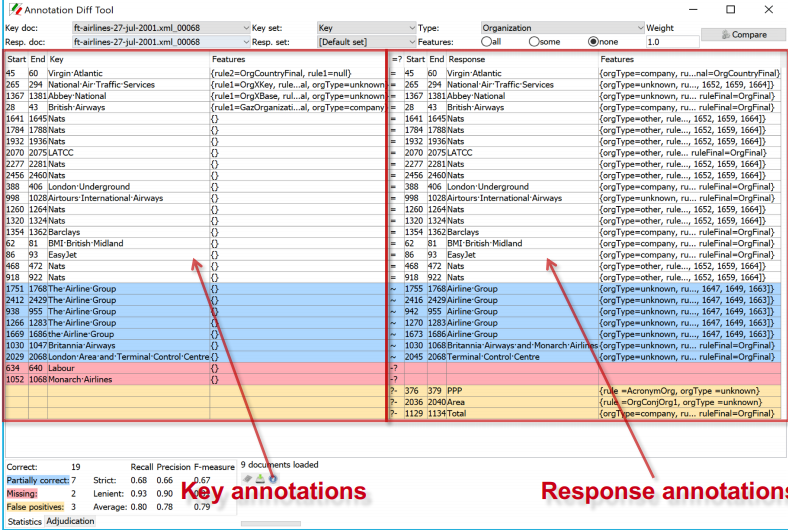
All annotations from the key set are compared with the ones from the response set, and those found to have the same start and end offsets are displayed on the same line in the table. Then, the Annotation Diff evaluates if the features of each annotation from the response set subsume those features from the key set, as specified by the features names you provide.
Annotation Diff Exercise
• Open the document “ft-airlines-27-jul-2001.xml”
• Open the Annotation Diff (Tools → Annotation Diff or
click the icon
• For the Key set (may contain the manual annotations)
select Key annotation set
• For the Response set (containing annotations from
ANNIE) select the Default annotation set
• For the Type option select the Organization annotation.
• Click on “Compare”
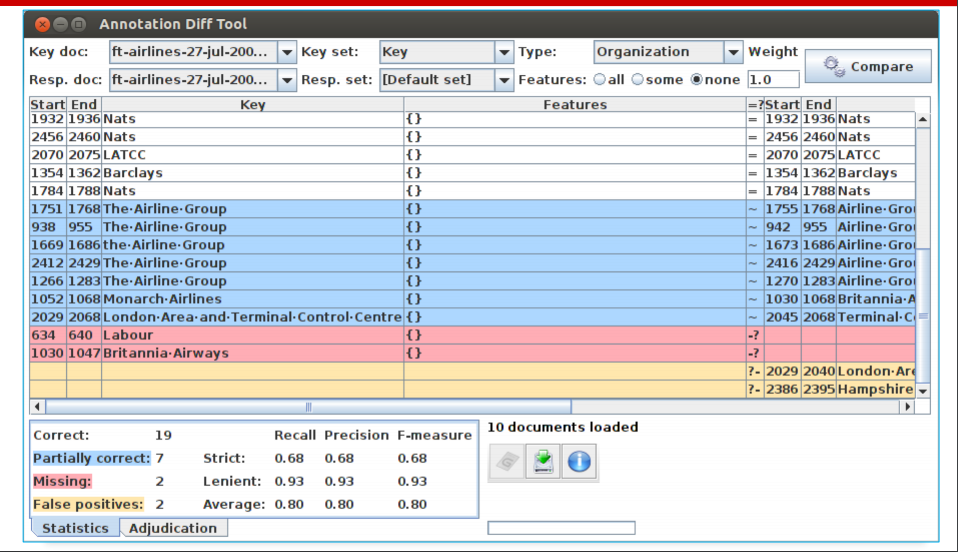
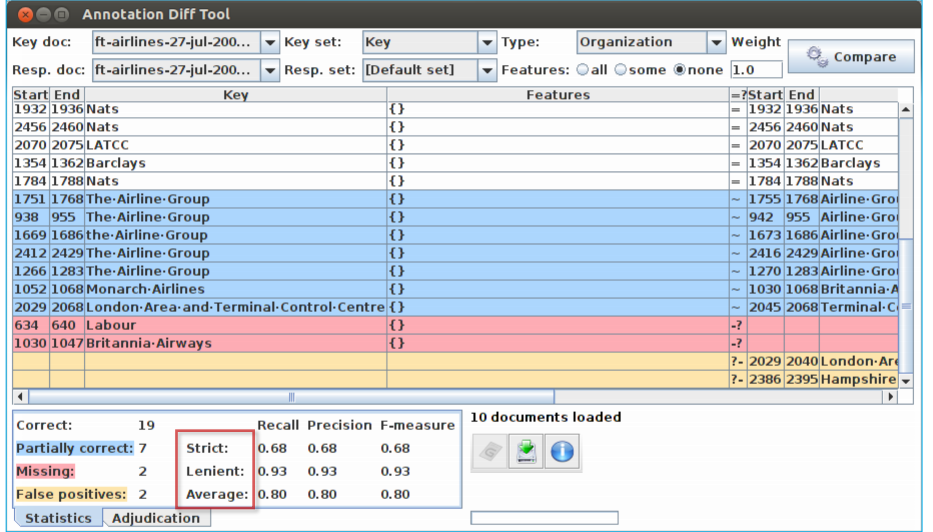
• Scroll down the list, to see correct, partially correct,
missing and false positive annotations
Comparing the individual annotations
• In the Annotation Diff, colour codes indicate
whether the annotation pair shown are correct,
partially correct, missing (false negative) or
false positive.
• You can sort the columns however you like.
Measuring success
• In IE, we classify the annotations produced in one of 4 ways:
Correct = things annotated correctly
e.g. annotating “Sheffield” as a Location
Missing = things not annotated that should have been
e.g. not annotating “Sheffield” as a Location
False positive (spurious) = things annotated wrongly
e.g. annotating “Sheffield” as a Location in “Sheffield United F.C.”
Partially correct = the annotation type is correct, but the span is
wrong
e.g. annotating just “Trump” as a Person (too short) or annotating
“Unfortunately Donald Trump” as a Person (too long)
Finding Precision, Recall and F-measure
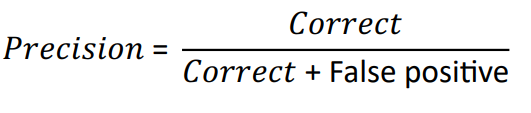
Precision
How many of the entities your application found were correct?
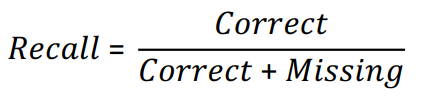
Recall
• How many of the entities that exist did your application
find?
• Sometimes recall is called coverage
F-Measure
• Precision and recall tend to trade off against one another.
• If you specify your rules precisely to improve precision, you
may get a lower recall.
• If you make your rules very general, you get good recall, but
low precision.
• This makes it difficult to compare applications, or to check
whether a change has improved or worsened the results
overall.
• F-measure combines precision and recall into one
measure.
• It is also known as the “harmonic mean”.
• Usually, precision and recall are equally weighted.
• This is known as F1.
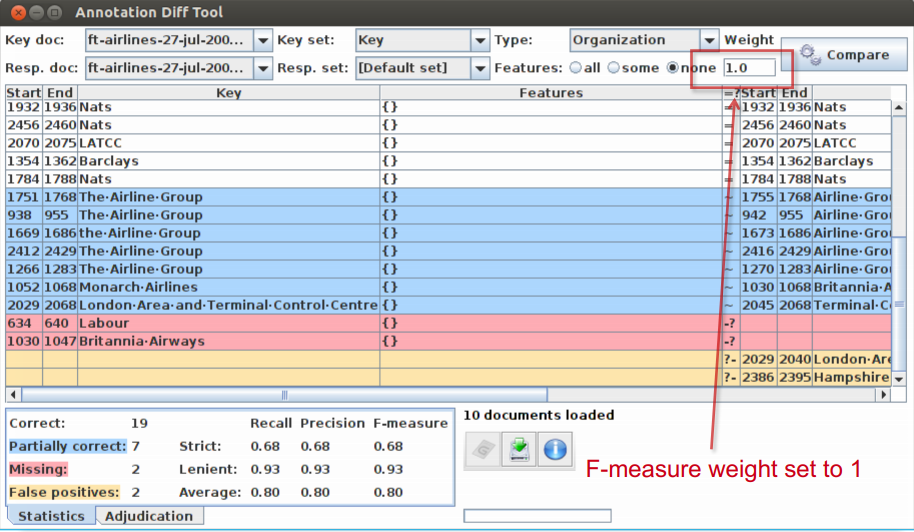
• To use F1, set the value of the F-measure weight to 1,
this is the default setting in Annotation Diff tool.
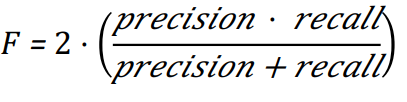
Annotation Diff defaults to F1
Statistics can mean what you want them to....
How we want to measure partially correct annotations may
differ, depending on our goal.
In GATE, there are 3 different ways to measure them
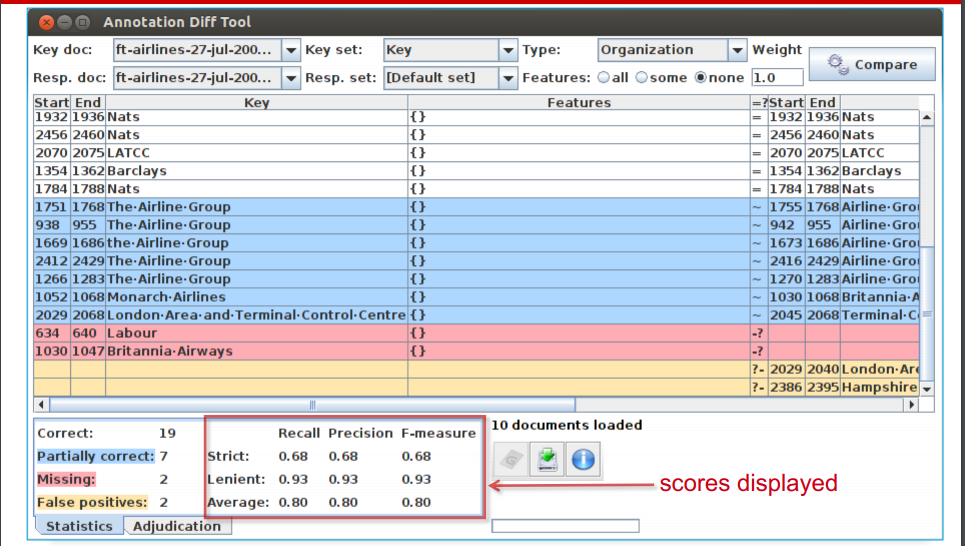
• The most usual way is to consider them to be “half right”.
• Strict: Only perfectly matching annotations are counted as
correct.
• Lenient: Partially matching annotations are counted as
correct. This makes your scores look better :)
• Average: Strict and lenient scores are averaged (this is the
same as counting a half weight for every partially correct
annotation).
Creating a Gold Standard with the Annotation Diff Tool
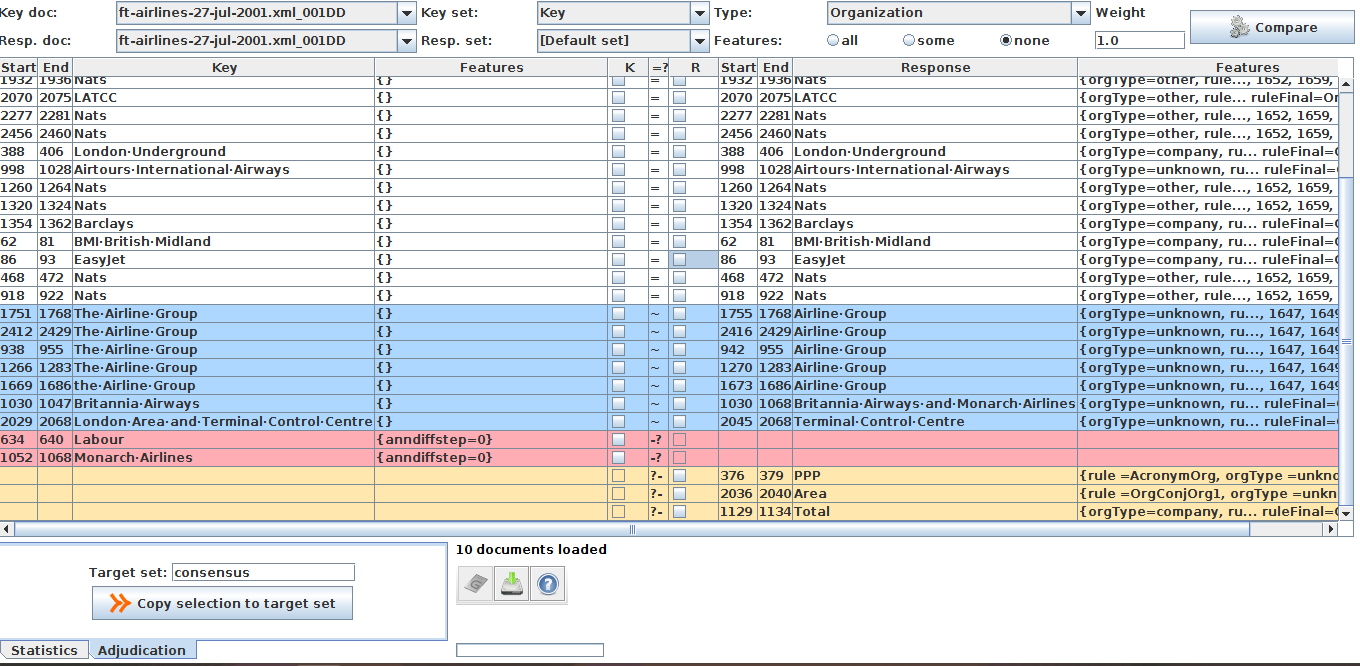
In order to create a gold standard set from two sets you need to show the ‘Adjudication’ panel at the bottom. It will insert two checkboxes columns in the central table. Tick boxes in the columns ‘K(ey)’ and ‘R(esponse)’ then input a Target set in the text field and use the ‘Copy selection to target’ button to copy all annotations selected to the target annotation set.
There is a context menu for the checkboxes to tick them quickly.
Each time you will copy the selection to the target set to create the gold standard set, the rows will be hidden in further comparisons. In this way, you will see only the annotations that haven’t been processed. At the end of the gold standard creation you should have an empty table.
To see again the copied rows, select the ‘Statistics’ tab at the bottom and use the button ‘Compare’.