View Documents 
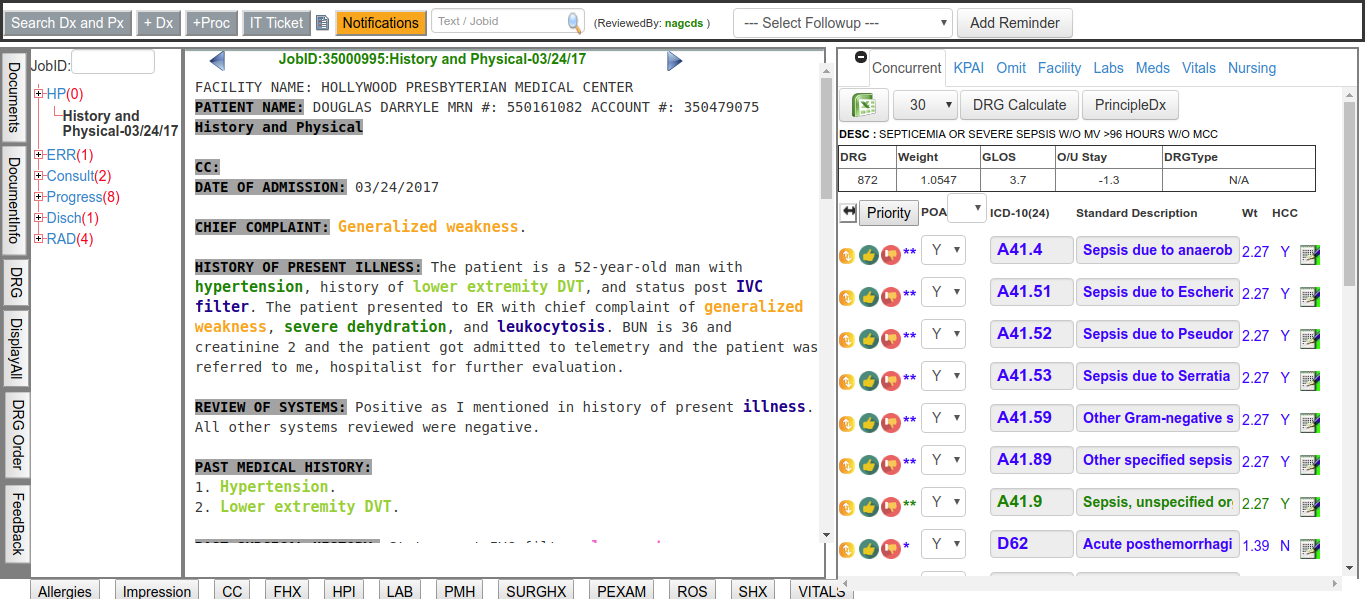
View Documents provides interface to view all available and required patient documents.
Documents:
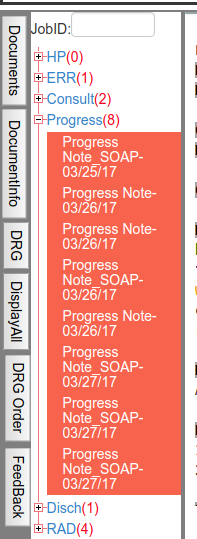
Click on Documents tab ,to view all documents grouped by document type.
Click on expand button provided for work types to view available documents.
Click on available documents to see document content.
Document Info:
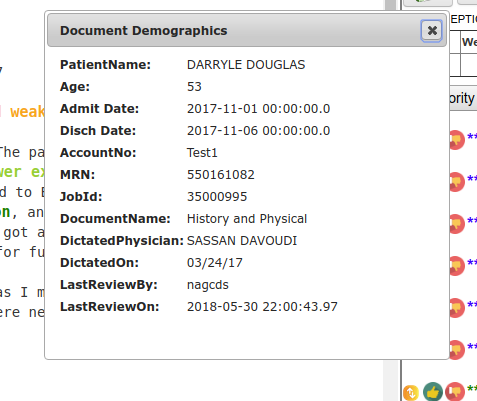
Click on Document Info button to view Document demographics .
DRG:
Click on DRG button to view or hide DRG section.
Display All:
Click on Display All button to view all 3 sections.(Document,Document tree,DRG section).
DRG change order log:
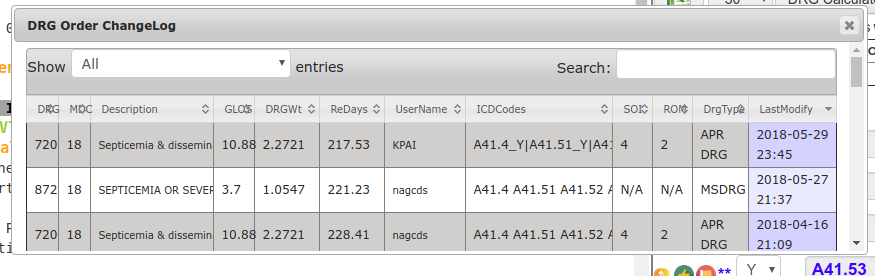
Click on "DRG order" button to view "DRG Order Change log" window.
All DRG details with last modify date & UserName are displayed in this log.
KPAI Feed Back:
This functionality is to get inputs from CDS or coders regarding missing combinations or coding to improve KPAI performance.
KPAI Feed Back include two tabs as follows:
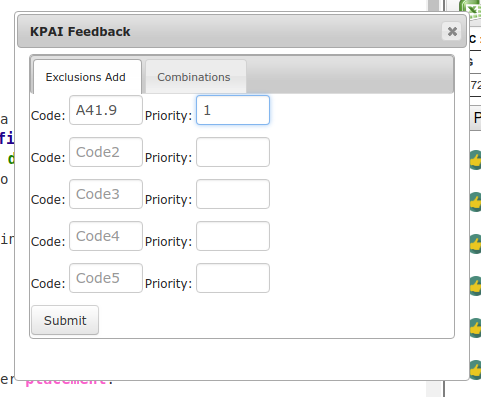
Exclusions Add :
Enter code and Priority and click on SUBMIT button to get details in to KPAI database tables.
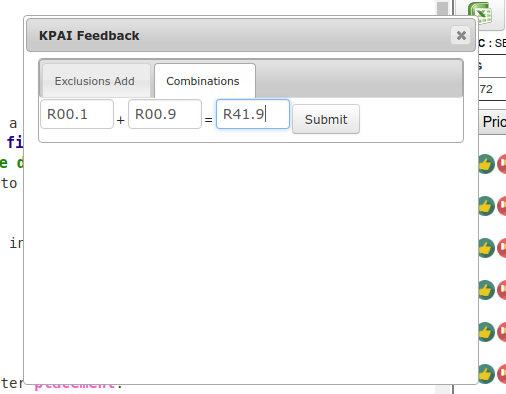
Combinations :
Enter codes in Code 1 & Code 2 text boxes and its corresponding combination code in CODE 3 and click on SUBMIT button.
Search Dx and Px (KPAI Encoder) :
Click on Annotated data to open KPAI Encoder.
KPAI Encoder facilitates CDS to search and add ICD codes for both diagnosis and procedures.
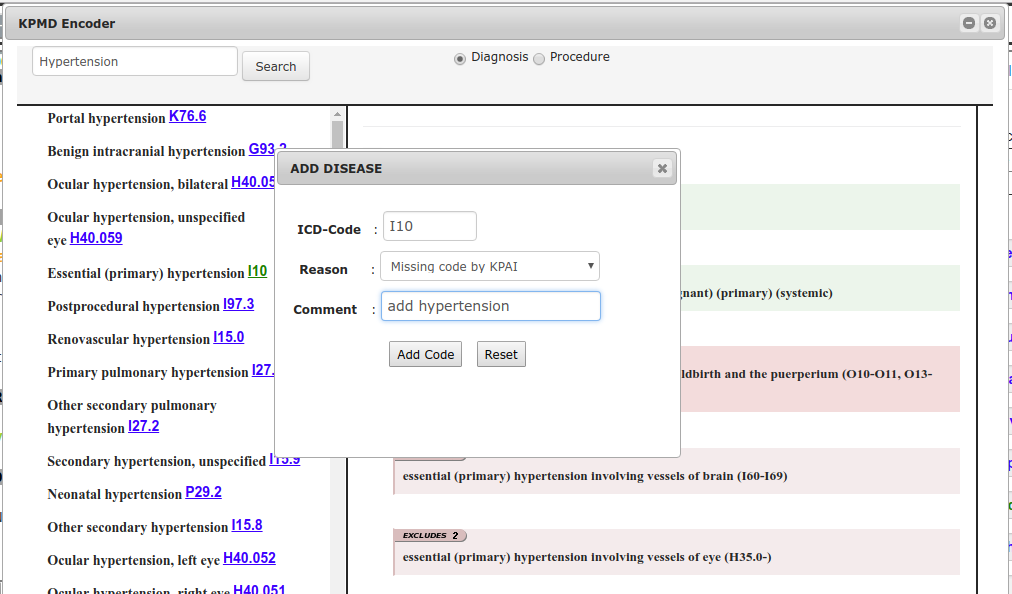
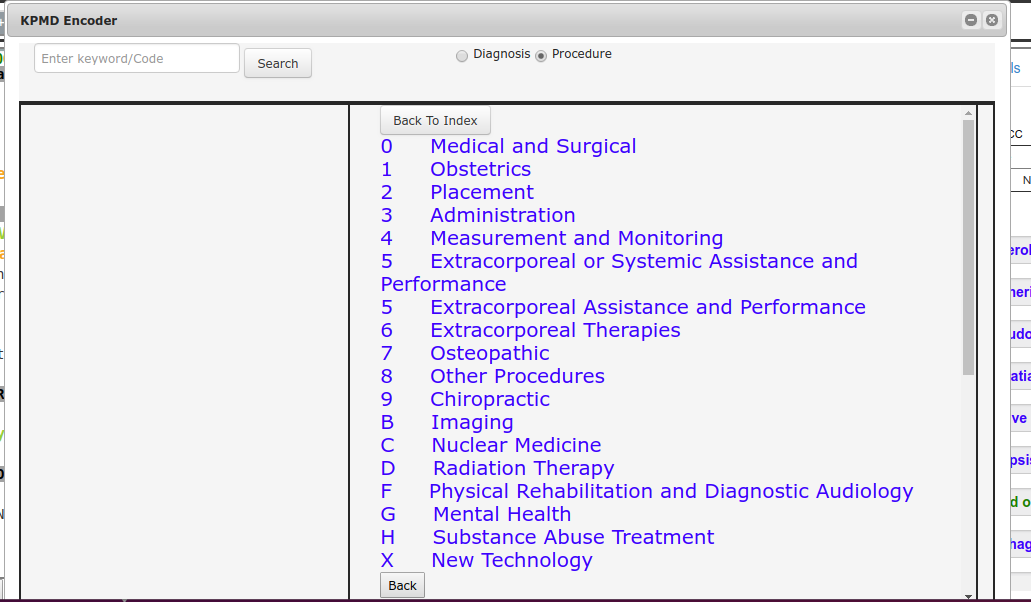
Enter diagnosis or procedure in search box and select related Radio button- diagnosis / procedure and click on Search button to retrieve all possible codes.
All possible codes will be retrieved.
Select code to open "Add ICD Code" window / "Add Procedure Code" window and click on ADD - button.
Code will be added and window will be closed.
Search & Add Dx:
Search Procedure:
Add Procedure:

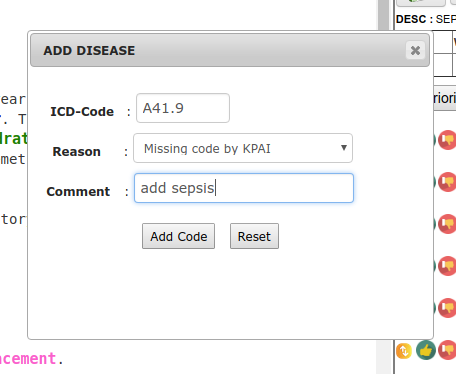
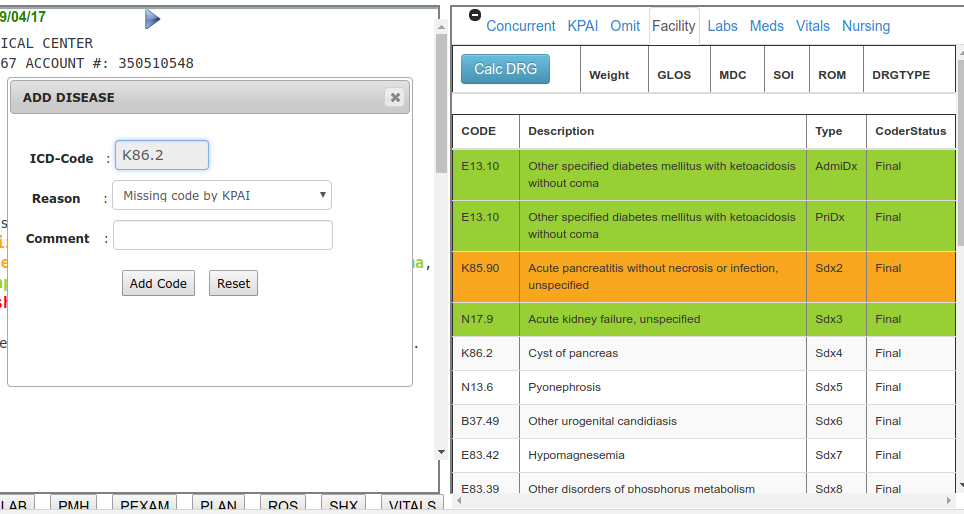
ADD Disease (+Dx) :
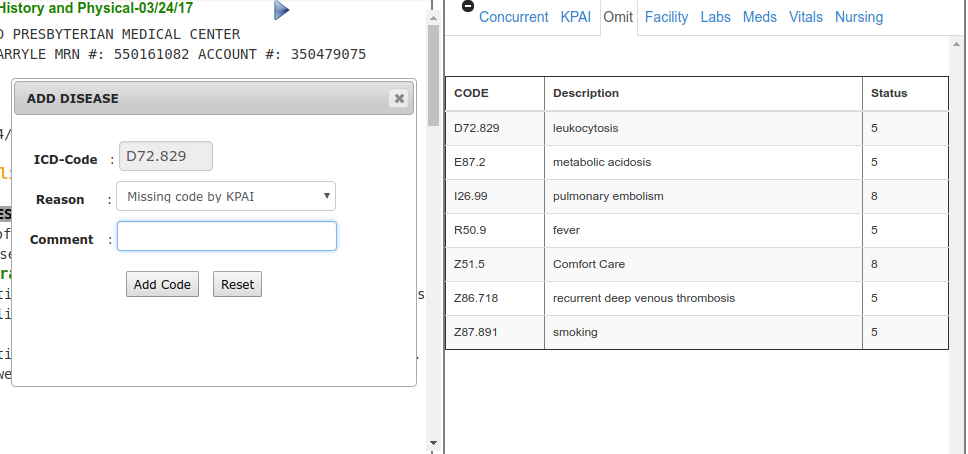
Click on +Dx button to open ADD Disease Pop-Up Window.
Enter ICD-Code,select reason from drop down list and enter comment and click on ADD CODE button.
diagnosis code will be added and PopUp window will be closed.
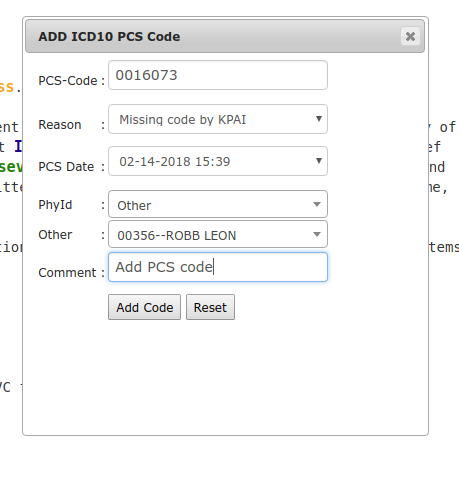
ADD Procedure (+Proc) :
Click on +Proc button to open ADD Procedure Pop-Up Window.
Enter PCS-Code,select reason from drop down list,select PCS-Date,Physician date and enter comment and click on ADD CODE button.
Procedure code will be added and PopUp window will be closed.
IT Ticket
IT ticket provides user to post any issues regarding KPAI to IT team.
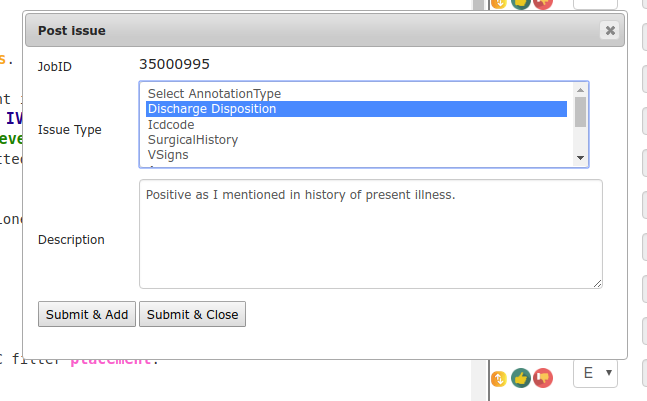
Select data in View-Document and click on IT Ticket button in CDI-Dash board to open a new window - POST ISSUE.
Select Issue Type and enter comments in Description text box.
Click on Submit & Add button / Submit & Close button to post issue.
Submit & Add button posts issue and Pop-Up window will remain unclosed to post new issue.
Submit & Close button posts issue and Pop-Up window will be closed.
Notifications:
SAME AS IN CDI DASH BOARD.
Search TEXT/JobId:

Search TEXT
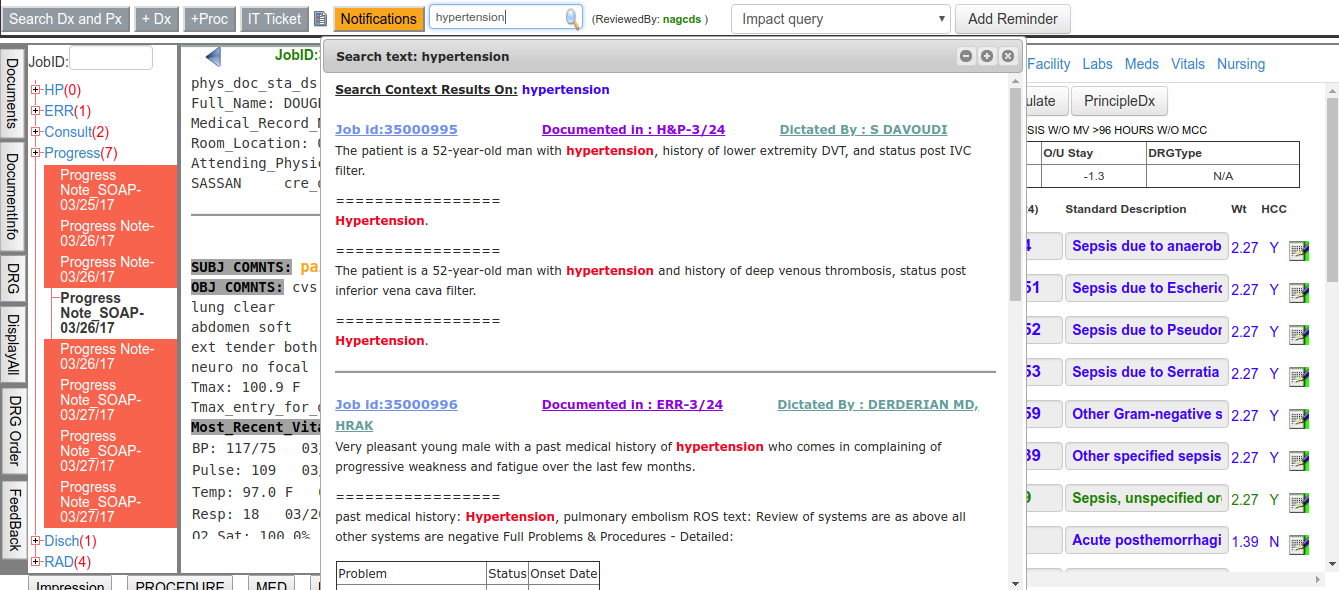
Enter text to be searched in documents,and press Enter button or click on Submit button.
All possible results will be retrieved and displayed in Pop-Up window.
Click on any result in Pop-Up window to see context in document.
Search JobId
Enter valid JobId in search Text Box ,and press Enter button or click on Submit button.
Current document should be redirected to new jobid, if Job Id belongs to same account or else alert will be displayed.
Follow-Up:
SAME AS IN CDI DASH BOARD.
Reminder:
SAME AS IN CDI DASH BOARD.
HOLD
CDS holds account from CDS Auditor to work , if CDS work is pending due to any reasons like pending documentation,pending query response or any other CDS reasons.
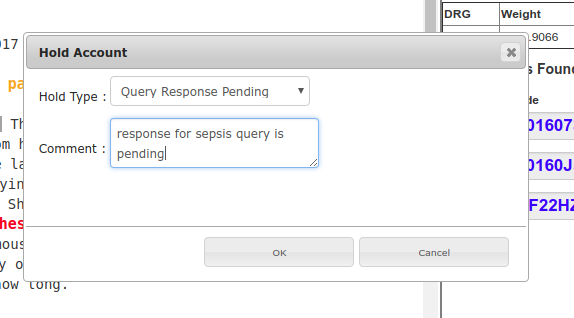
Click on HOLD button to open new Pop-Up window Hold Account.
Select Hold Type, and enter description in Comment text box and click on OK button.
Document Section
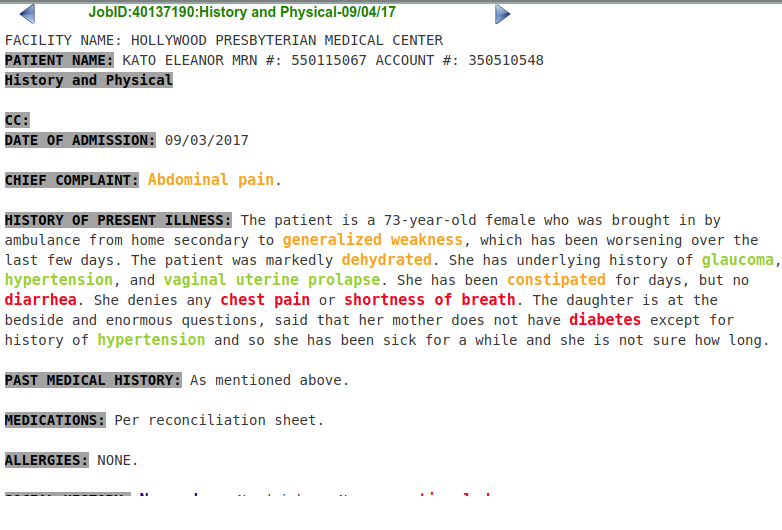
In this section Patient documents will be displayed on user selection from document.
All headings in document will be annotated and data in documents will be annotated with different types like diagnosis,sign or symptom, findings etc..
All annotated headings are displayed as buttons for every document,to navigate in document to that section.
ICD SECTION
This section mainly about diagnosis & procedure codes generated by KPAI & added by user.Following is the brief description and different tabs under this section.
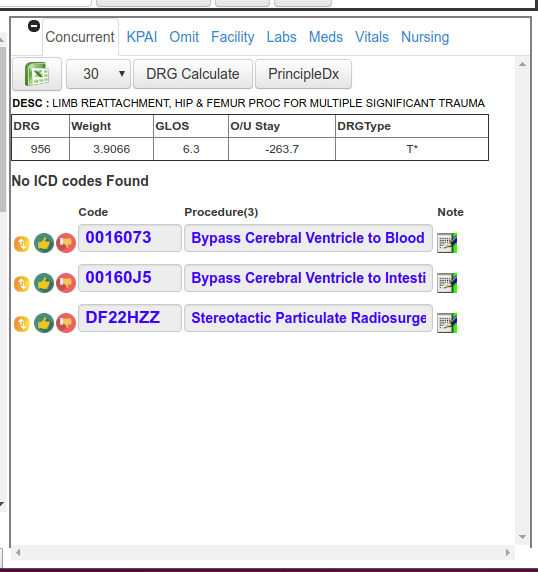
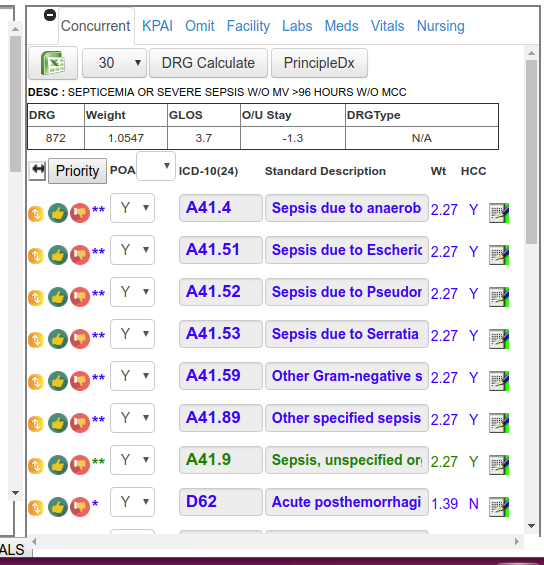
Concurrent :
This section contains concurrently coded codes by CDS(codes added or audited by CDS).
KPAI :
This section contains KPAI generated ICD diagnosis & procedure codes.
Following are common functionalities of both Concurrent & KPAI sections.
Excel Download :
Click on Excel button to download ICD DX and procedure codes.
DRG Calculate :
Select required option in "Disposition DropDown list" and set order of ICD codes to set priority and click on
"DRG Calculate" button.
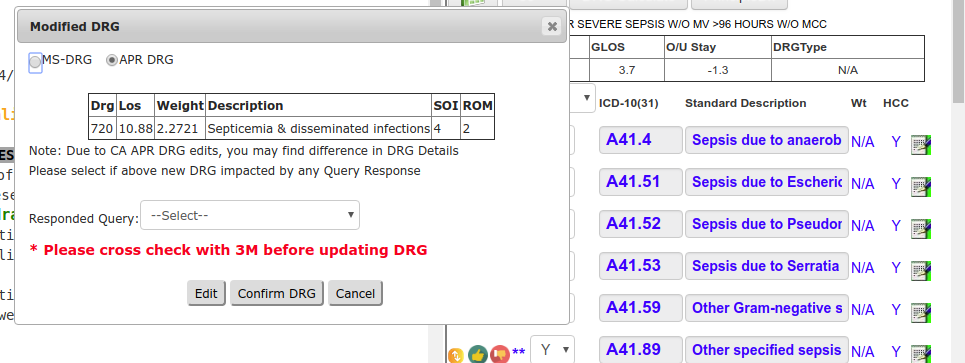
On clicking "DRG calculate" button a new window "Modified DRG" will be opened.
Select Ms-DRG / APR DRG radio buttons for required DRG .
Click on OK button to save DRG details.
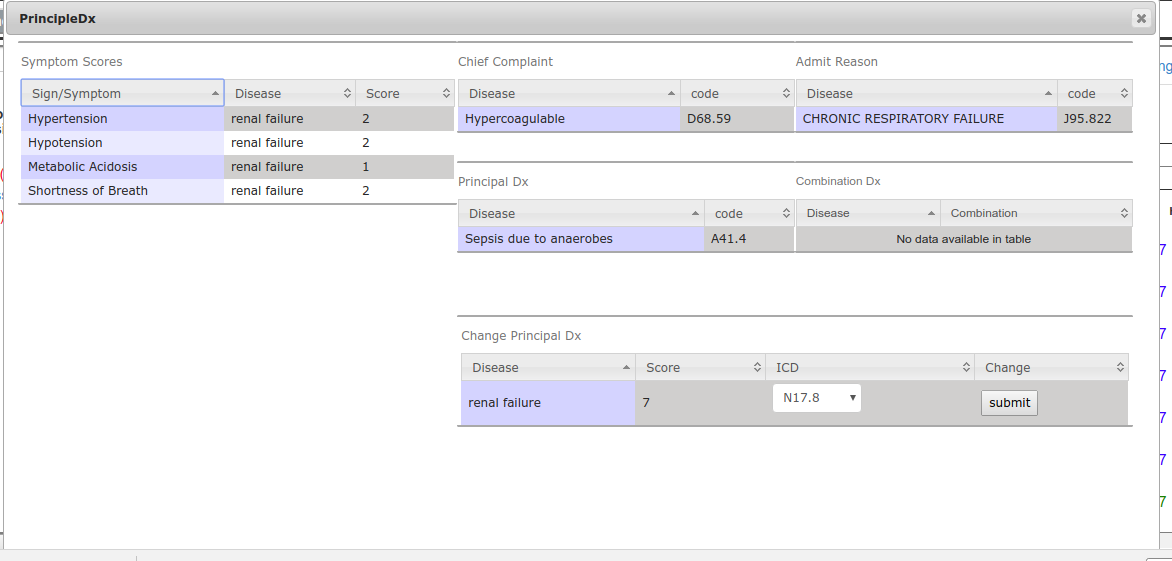
Principal Dx:
PENDING
KPAI calculates Primary Diagnosis based on existing logic.
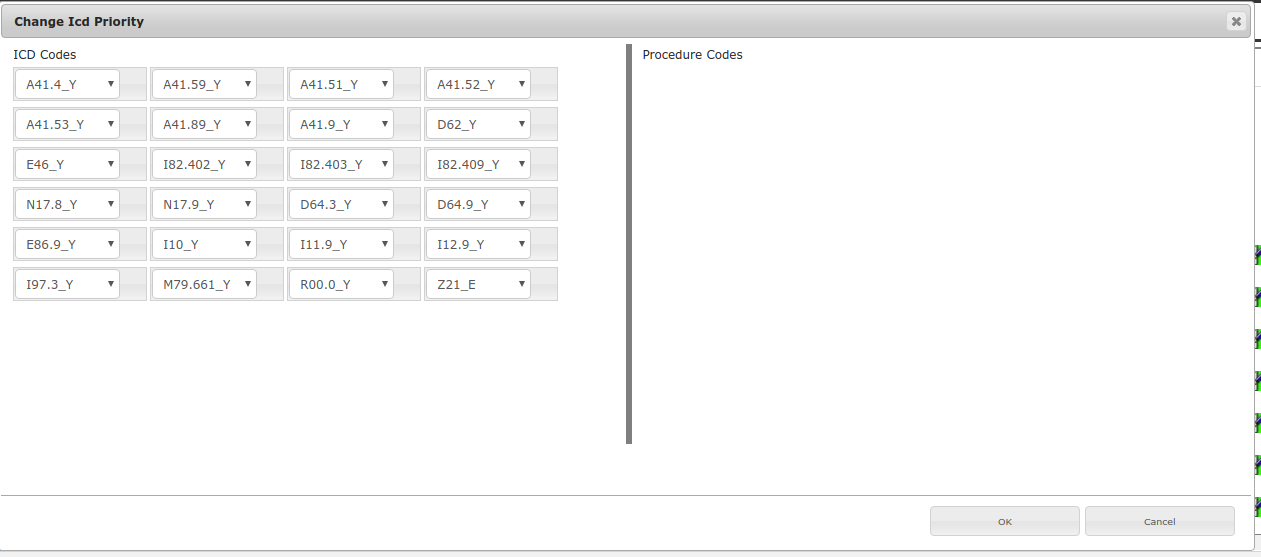
Priority:
on clicking on Priority button "Change ICD Priority" window will be opened.
PENDING
POA (drop down list):
Select (y/N/W/U/E) options in POA drop down list , and click on DRG CALCULATE button to save POA values.
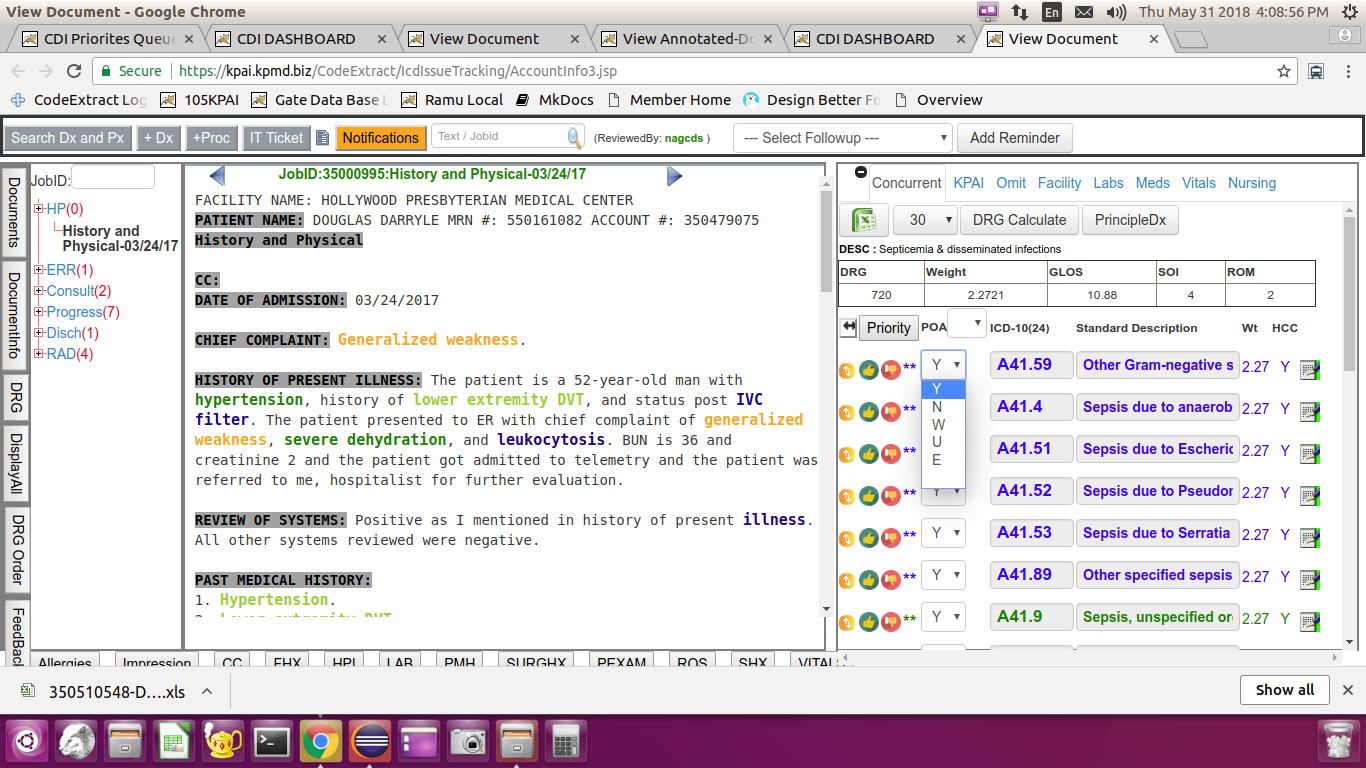
Standard Description / Actual Description:
Click on Standard Description to see actual description of DX codes and vice versa..
These contains both KPAI retrieved ICD codes and User added ICD codes. ICD codes are selectable , on clicking ICD codes document will be redirected to document with context and the same context will be highlighted.
User can click on Actual Description/Standard Description link to see other description each time.
Under this column ICD code weight is displayed under each section.
Under this column each diagnosis is displays with Yes or NO (Y/N) to say whether the code comes under hierarchical category condition or not.
Drag & Drop icon is available beside every diagnosis.Click, hold and drag icon and drop the diagnosis in the order and click CalculateDRG button to recalculate DRG on modified ICD code order.
On clicking Audit button for KPAI generated code from KPAI section, code will be audited and moved in to Concurrent section.
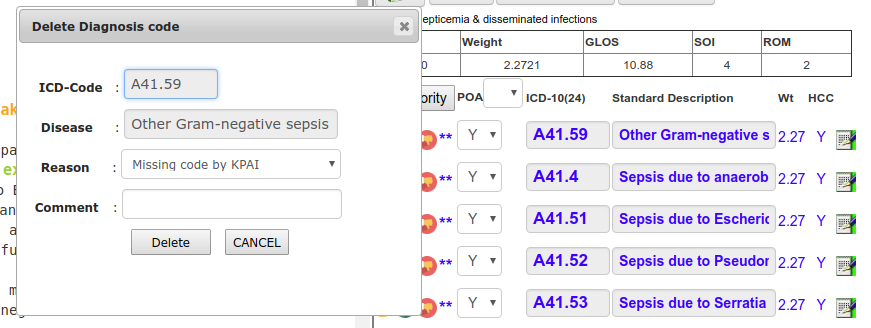
On clicking Delete button for any Dx/PCS code, code will be deleted but displayed in KPAI section with red and strike font.
While calculating DRG from KPAI section these codes will not be sent to DRG calculation.
Deleted codes from Concurrent section will not be shown.
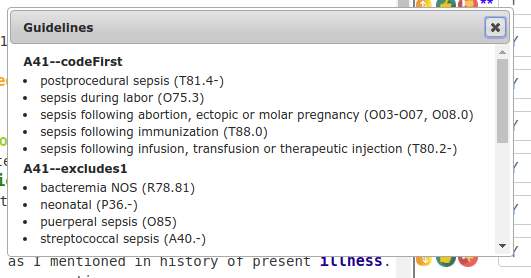
Click on NOTE button present beside every code to see guidelines about that code.
OMIT :
This section contains KPAI generated codes but omitted due to presence of high priority code than the omitted code.
ADD Code Click on Code found in this section to add ommitted code to concurrent section.
Facility :
This section shows all facility coded codes.Click on Code found in this section to add ommitted code to concurrent section.
Labs :
This se1ction displays all lab tests performed on patient.Following are different sections under this section.
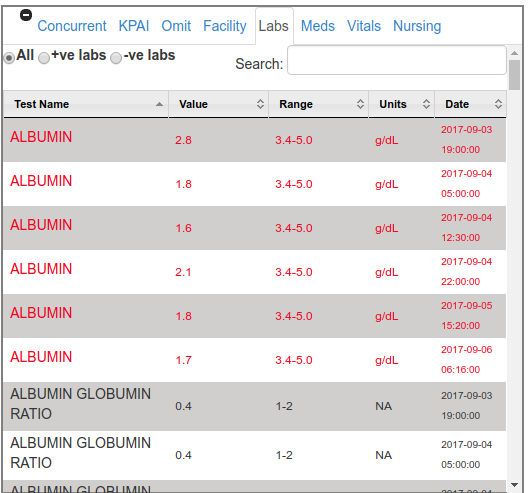
ALL :
Positive labs are displayed with red in color.
Negative labs are displayed with black in color.
+ve Labs(Positive labs):
Lab test results with abnormal values(values out of range) are listed under this section.These were displayed with RED in color.
-ve Labs(Negative labs):
Lab test results with values with in range are listed under this section.These were displayed with RED in color.
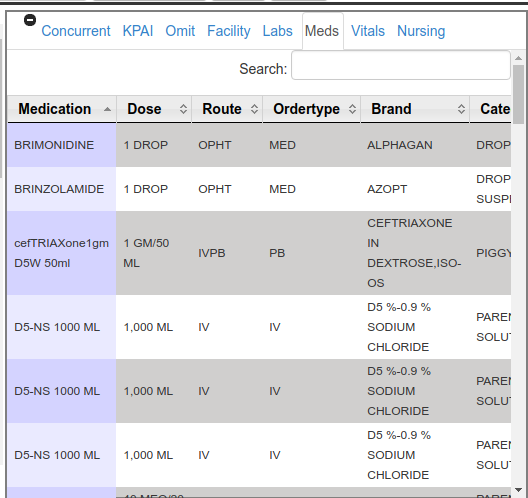
Meds :
This section displays all patient medication lists.
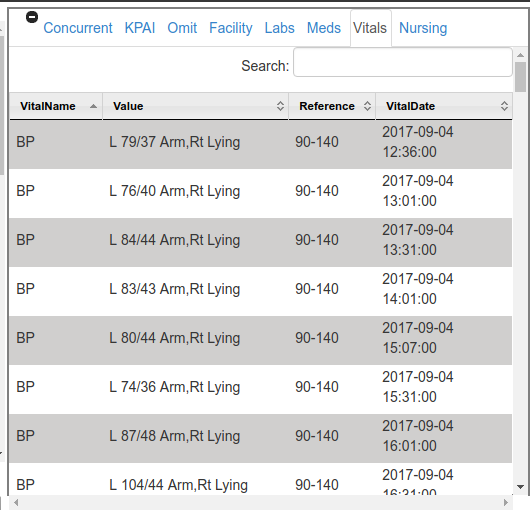
Vitals :
This section displays all patient vitals.
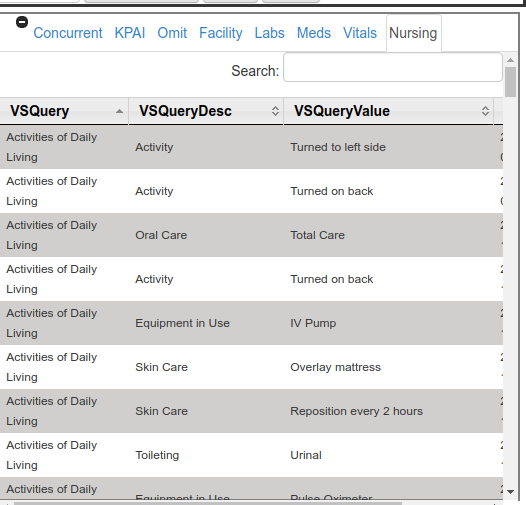
Nursing :
This section displays all nursing data terms.