Corpus Benchmark Tool
Like the Corpus Quality Assurance functionality, the corpus benchmark tool enables evaluation to be carried out over a whole corpus rather than a single document. Unlike Corpus QA, it uses matched corpora to achieve this, rather than comparing annotation sets within a corpus. It enables tracking of the system’s performance over time. It provides more detailed information regarding the annotations that differ between versions of the corpus (e.g. annotations created by different versions of an application) than the Corpus QA tool does.
The basic idea with the tool is to evaluate an application with respect to a ‘gold standard’. You have a ‘marked’ corpus containing the gold standard reference annotations; you have a ‘clean’ copy of the corpus that does not contain the annotations in question, and you have an application that creates the annotations in question. Now you can see how you are getting on, by comparing the result of running your application on ‘clean’ to the ‘marked’ annotations
Preparing the Corpora for Use
You will need to prepare the following directory structure:
main directory (can have any name)
- ● "clean" (directory containing unannotated documents in XML form)
- ● "marked" (directory containing annotated documents in XML form)
- ● "processed" (directory containing the datastore which is generated
when you ‘store corpus for future evaluation’)
● main: you should have a main directory containing subdirectories for your matched corpora. It does not matter what this directory is called. This is the directory you will select when the program prompts, ‘Please select a directory which contains the documents to be evaluated’.
● clean: Make a directory called ‘clean’ (case-sensitive), and in it, make a copy of your corpus that does not contain the annotations that your application creates (though it may contain other annotations). The corpus benchmark tool will apply your application to this corpus, so it is important that the annotations it creates are not already present in the corpus. You can create this corpus by copying your ‘marked’ corpus and deleting the annotations in question from it.
● marked: you should have a ‘gold standard’ copy of your corpus in a directory called ‘marked’ (case-sensitive), containing the annotations to which the program will compare those produced by your application. The idea of the corpus benchmark tool is to tell you how good your application performance is relative to this annotation set. The ‘marked’ corpus should contain exactly the same documents as the ‘clean’ set.
● processed: this directory contains a third version of the corpus. This directory will be created by the tool itself, when you run ‘store corpus for future evaluation’. We will explain how to do this in Section
Defining Properties
The properties of the corpus benchmark tool are defined in the file ‘corpus_tool.properties’, which should be located in the GATE home directory. GATE will tell you where it’s looking for the properties file in the ‘message’ panel when you run the Corpus Benchmark Tool. It is important to prepare this file before attempting to run the tool because there is no file present by default, so unless you prepare this file, the corpus benchmark tool will not work!
The following properties should be set:
● the precision/recall performance threshold for verbose mode, below which the annotation will be displayed in the results file. This enables problem annotations to be easily identified. By default this is set to 0.5;
● the name of the annotation set containing the human-marked annotations (annotSetName);
● the name of the annotation set containing the system-generated annotations (outputSetName);
● the annotation types to be considered (annotTypes);
● the feature values to be considered, if any (annotFeatures).
The default annotation set has to be represented by an empty string. The outputSetName and annotSetName must be different, and cannot both be the default annotation set. (If they are the same, then use the Annotation Set Transfer PR to change one of them.) If you omit any line (or just leave the value blank), that property reverts to default. For example, ‘annotSetName=’ is the same as leaving that line out.
An example file is shown below:
threshold=0.5
annotSetName=Key
outputSetName=ANNIE
annotTypes=Person;Organization;Location;Date;Address;Money
annotFeatures=type;gender
Running the Tool
To use the tool, first make sure the properties of the tool have been set correctly and that the corpora and directory structure have been prepared correctly. Also, make sure that your application is saved to file . Then, from the ‘Tools’ menu, select ‘Corpus Benchmark’. You have four options:
- 1. Default Mode
- 2. Store Corpus for Future Evaluation
- 3. Human Marked Against Stored Processing Results
- 4. Human Marked Against Current Processing Results
We will describe these options in a different order to that in which they appear on the menu, to facilitate explanation.
Store Corpus for Future Evaluation populates the ‘processed’ directory with a datastore containing the result of running your application on the ‘clean’ corpus. If a ‘processed’ directory exists, the results will be placed there; if not, one will be created. This creates a record of the current application performance. You can rerun this operation any time to update the stored set.
Human Marked Against Stored Processing Results compares the stored ‘processed’ set with the ‘marked’ set. This mode assumes you have already run ‘Store corpus for future evaluation’. It performs a diff between the ‘marked’ directory and the ‘processed’ directory and prints out the metrics.
Human Marked Against Current Processing Results compares the ‘marked’ set with the result of running the application on the ‘clean’ corpus. It runs your application on the documents in the ‘clean’ directory creating a temporary annotated corpus and performs a diff with the documents in the ‘marked’ directory. After the metrics (recall, precision, etc.) are calculated and printed out, it deletes the temporary corpus.
Default Mode runs ‘Human Marked Against Current Processing Results’ and ‘Human Marked Against Stored Processing Results’ and compares the results of the two, showing you where things have changed between versions. This is one of the main purposes of the benchmark tool; to show the difference in performance between different versions of your application.
Once the mode has been selected, the program prompts, ‘Please select a directory which contains the documents to be evaluated’. Choose the main directory containing your corpus directories. (Do not select ‘clean’, ‘marked’, or ‘processed’.) Then (except in ‘Human marked against stored processing results’ mode) you will be prompted to select the file containing your application (e.g. an .xgapp file).
The tool can be used either in verbose or non-verbose mode, by selecting or unselecting the verbose option from the menu. In verbose mode, for any precision/recall figure below the user’s pre-defined threshold (stored in corpus_tool.properties file) the tool will show the the non-coextensive annotations (and their corresponding text) for that entity type, thereby enabling the user to see where problems are occurring.
The Results
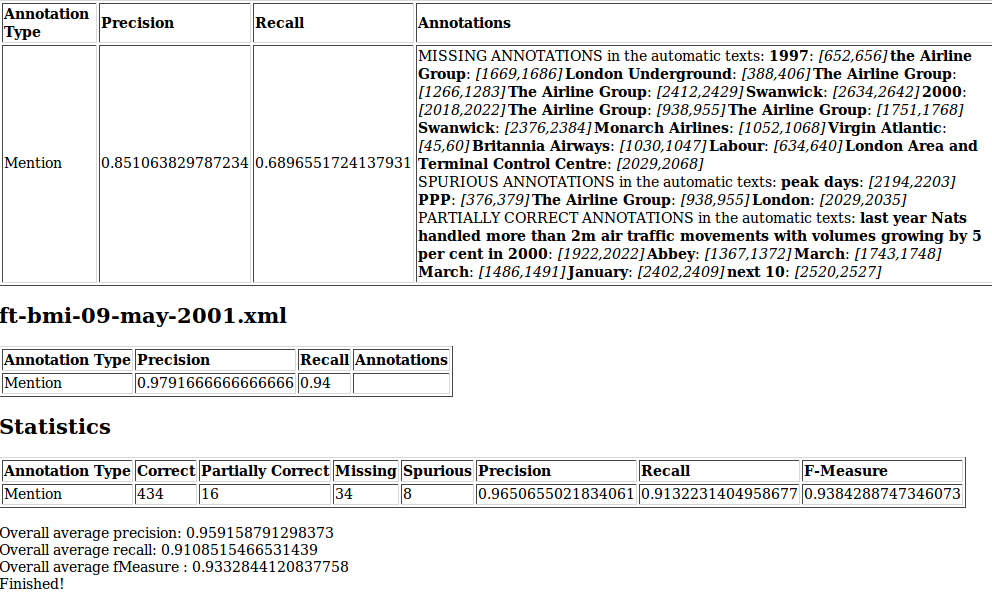
Running the tool (either in ‘Human marked against stored processing results’, ‘Human marked against current processing results’ or ‘Default’ mode) produces an HTML file, in tabular form, which is output in the main GATE Developer messages window. This can then be pasted into a text editor and viewed in a web browser for easier viewing.
In each mode, the following statistics will be output:
Per-document figures, itemised by type: precision and recall, as well as detailed information about the differing annotations;
Summary by type (‘Statistics’): correct, partially correct, missing and spurious totals, as well as whole corpus (micro-average) precision, recall and f-measure (F1), itemised by type;
Overall average figures: precision, recall and F1 calculated as a macro-average (arithmetic average) of the individual document precisions and recalls.
In ‘Default’ mode, information is also provided about whether the figures have increased or decreased in comparison with the ‘Marked’ corpus.