CDS-CODER Reconciliation 
CDS - Coder Reconciliation module is to simplify the interaction between the CDS and Coder to reconcile any mismatches.
1) Facility Coder Logs in to the application by the credentials provided.
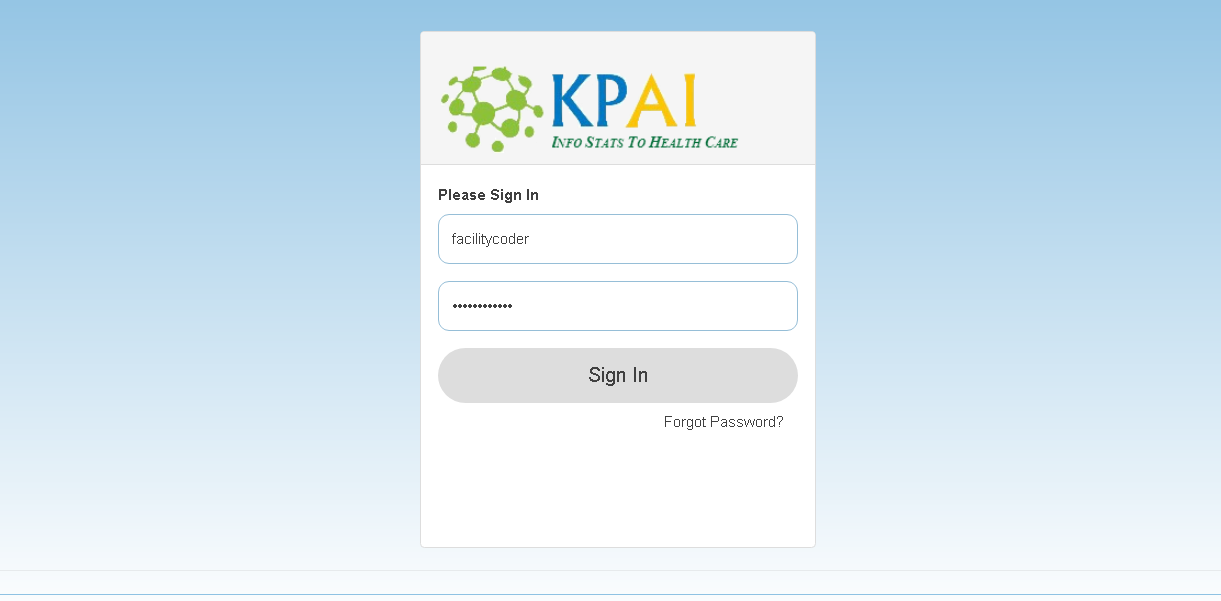
2) As soon as the coder logs in, the module seen is “CDS-Coder Reconciliation”.

3) Clicking that module brings up the below screen.
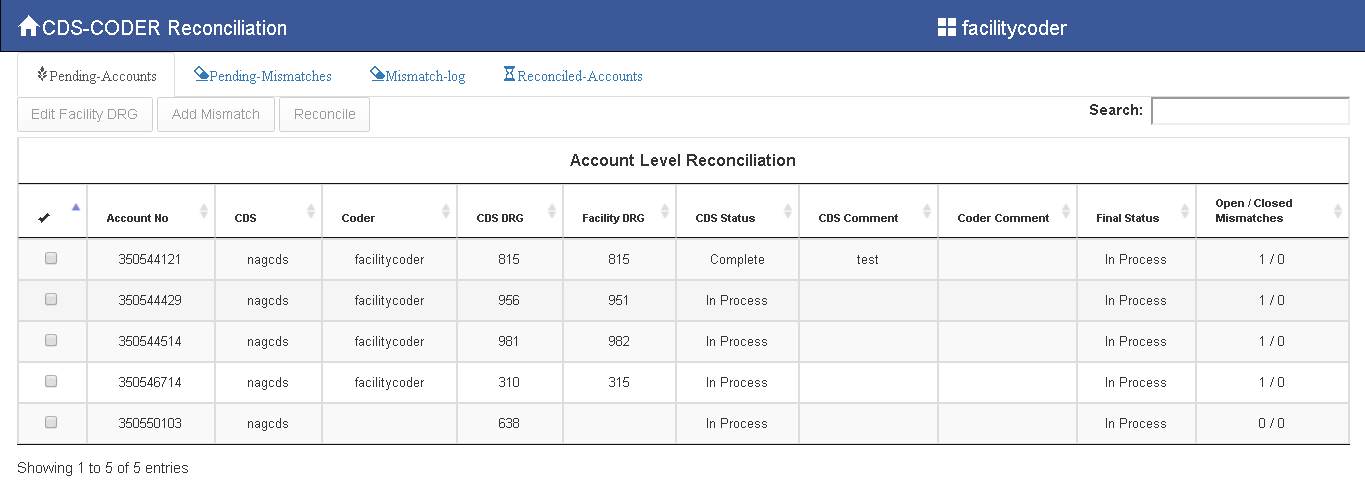
Given below is a brief on the different tabs in the screen.
Pending- Accounts: All discharged accounts are available in this list. So if the Coder wants to add a mismatch to a particular account then he needs to select it from this list.
NOTE: All accounts need to be processed by the Coder, irrespective of having mismatch or not.
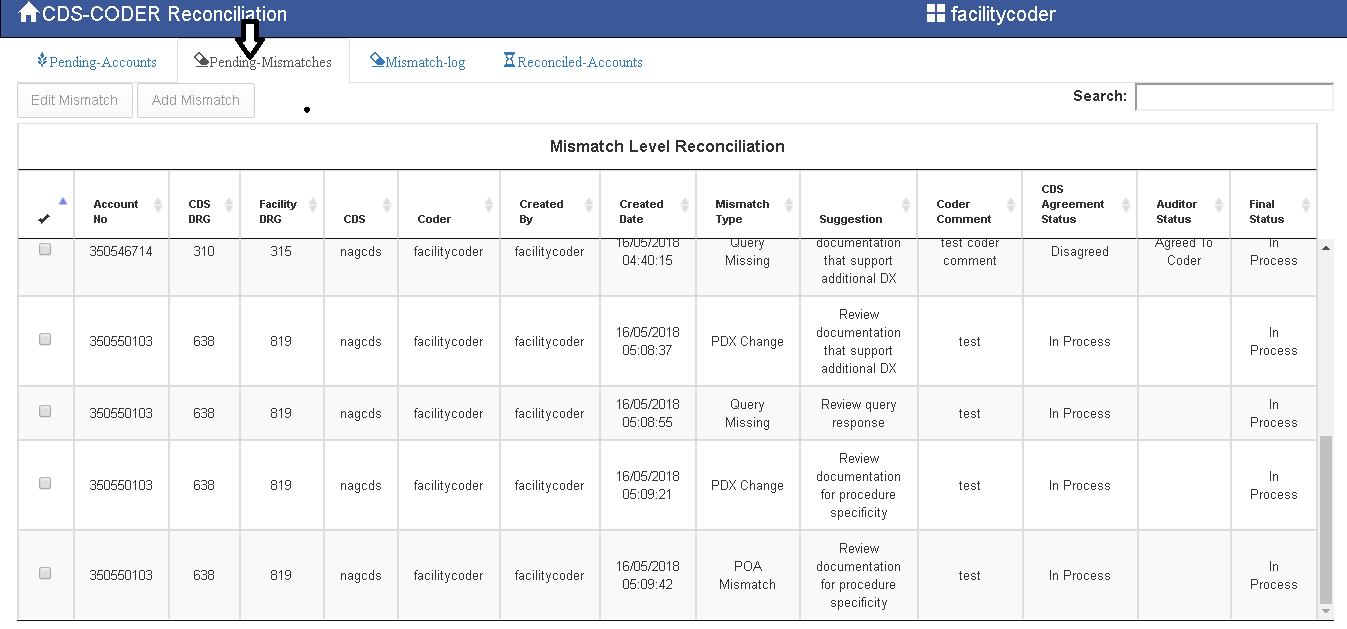
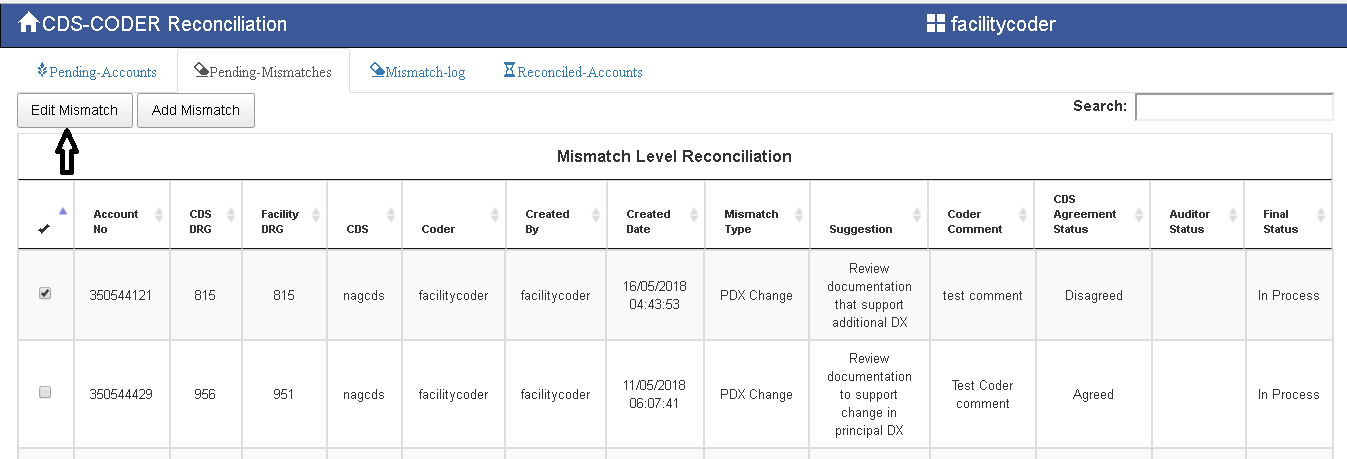
Pending-Mismatches: Once the Coder creates a mismatch, the list of mismatches would be shown in this tab.
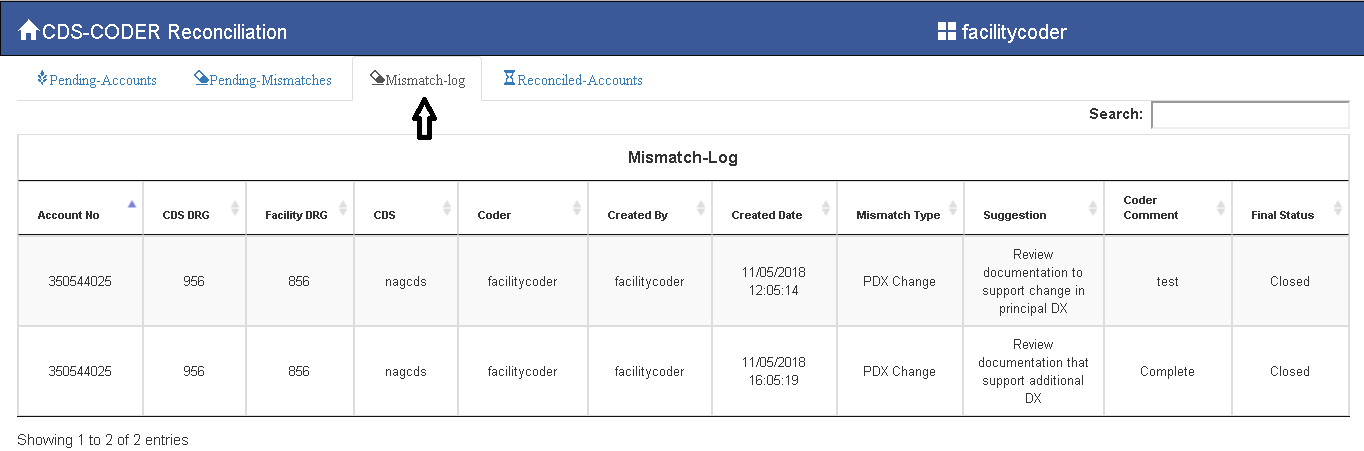
Mismatch-Log: Once the mismatch is closed after discussion with the CDS/Auditor, it can be viewed in this tab.
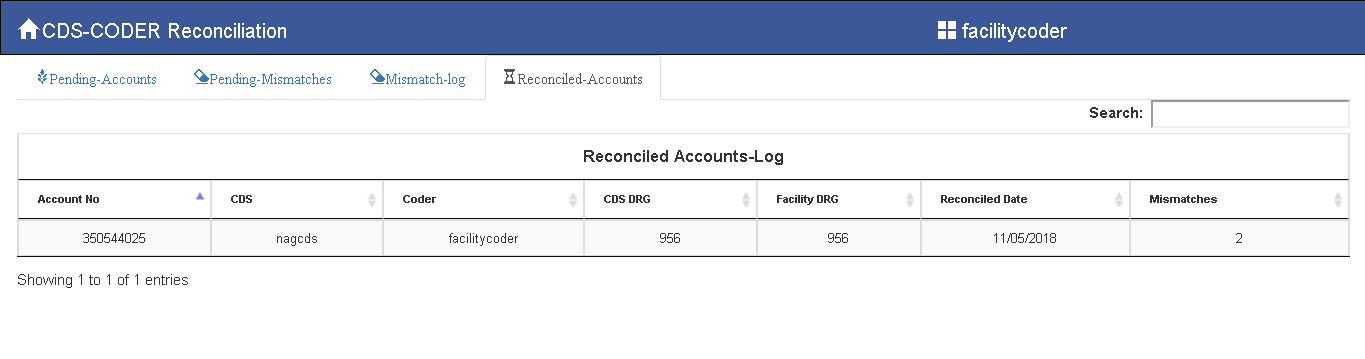
Reconciled-Accounts: Once all mismatches for an account is closed then it needs to be closed at the Account Level. Once closed at the account level, the accounts move to this tab.
Pending-Accounts Tab Action Buttons:
Once you click Pending Accounts tab, you see the below buttons. The coder needs to select the account from the list and then click on any of the below.
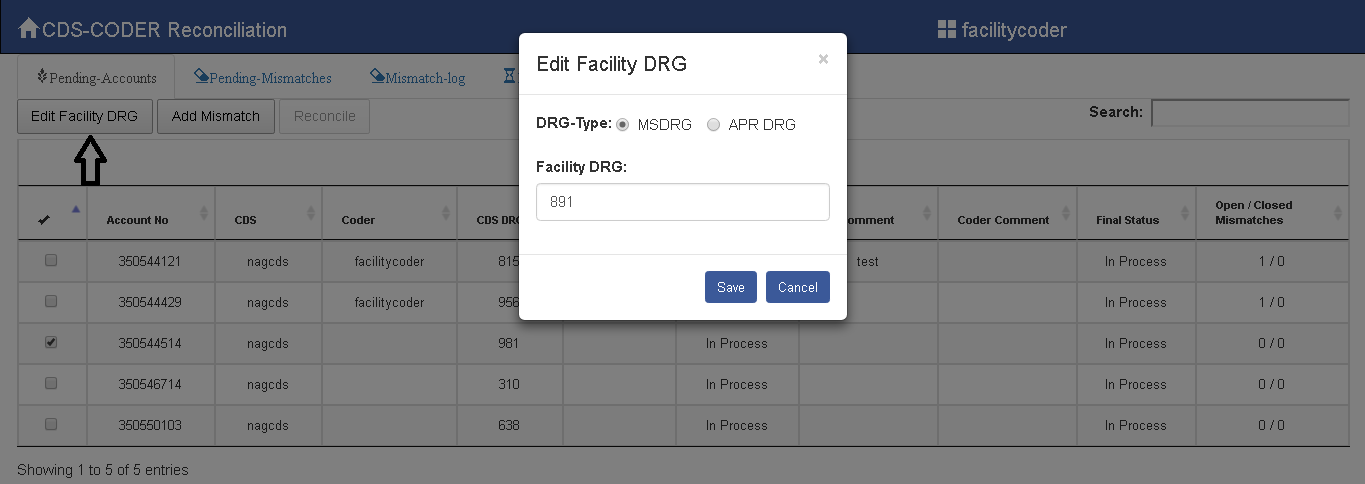
Edit Facility DRG: If no mismatches, then the facility Coder would click this and enter the facility DRG and save.
Add Mismatch: If there is a mismatch, then the Facility Coder would click this to add a mismatch.
Reconcile: By clicking this, the account can be closed (Reconciled). An account can be reconciled only if all the mismatches are closed.
The different CDI Statuses mean as below:
In Process: Accounts which are being currently worked on by the CDS.
On-Hold: Accounts kept on Hold by the CDS due to different reasons. The reasons are given in the CDI Comment column.
Closed: Accounts completed by CDS.
4) If no mismatches, then the Coder selects the account and clicks on Edit Facility DRG and enters the facility DRG Type and Value (see below).
Then click on Reconcile tab to close that account (see below). Enter comments if needed and click Reconcile. Then this account moves out to Reconciled-Accounts tab.
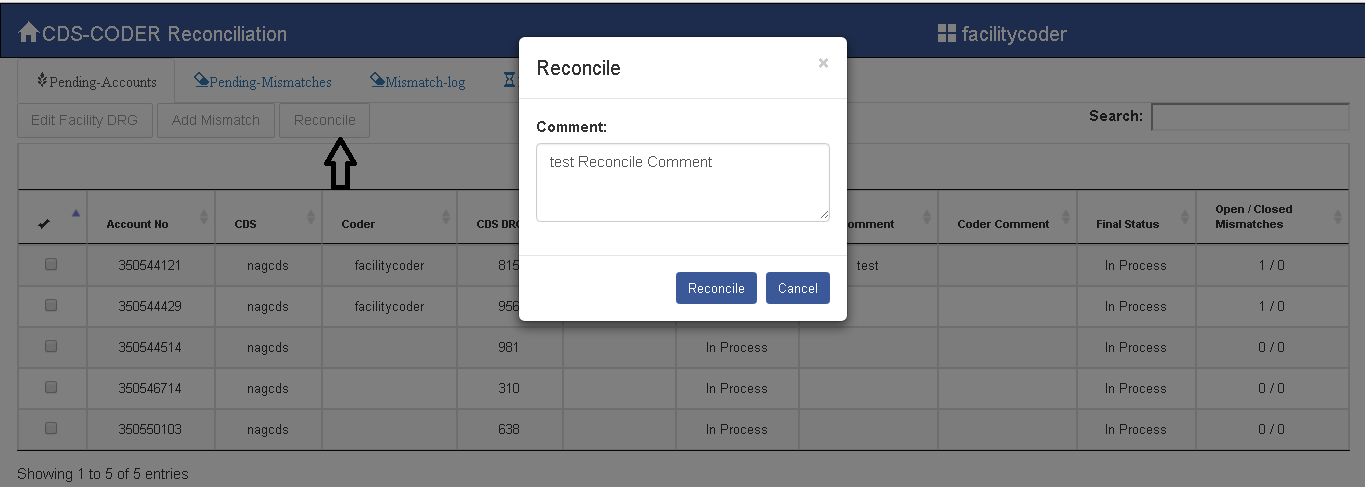
IMP NOTE: To successfully reconcile an account, the facility DRG & CDS DRG should be same, CDI Status should be “Complete”, and the Open Mismatches should be 0.
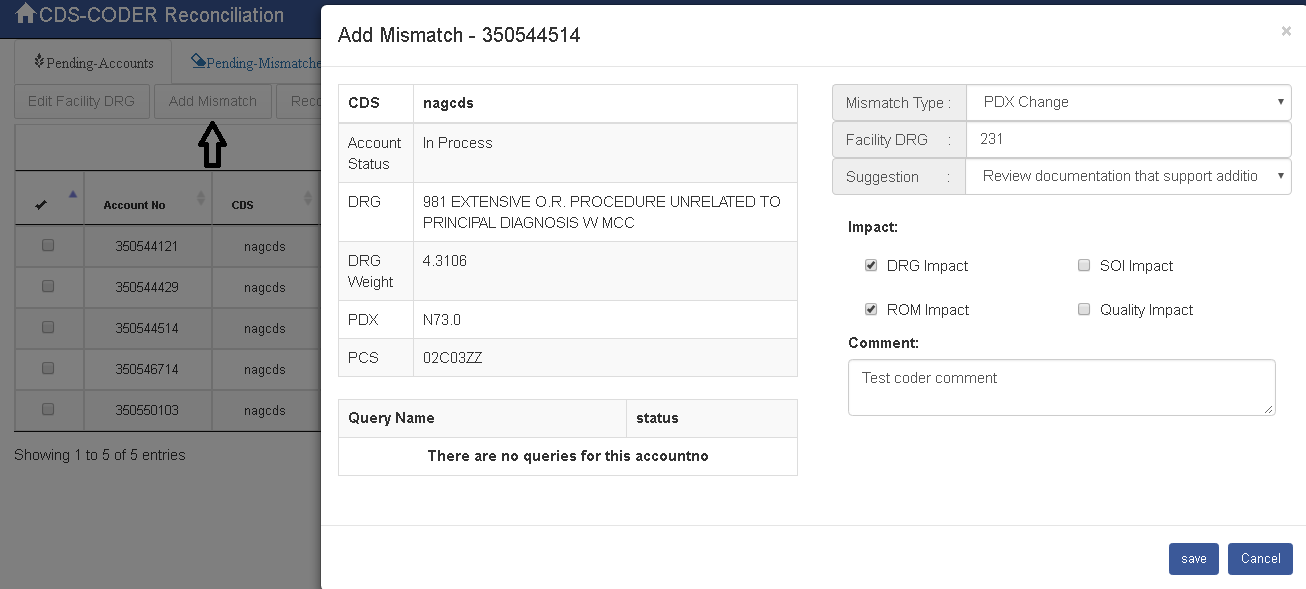
5) If there is a mismatch in an account, then the Coder selects that account and clicks on “Add Mismatch” (see below). The Left side contains the CDS data. The Coder needs to enter data on the right side (select mismatch type, facility DRG, select the appropriate Suggestion, Impact type and give required instructions/suggestions in the comments if necessary).
Once, created and saved, these mismatches will be listed in Pending-Mismatches Tab (See Below)
The CDS would either Agree or Disagree and enter “Agreed or Disagreed” which would reflect in the CDS Agreement Status column.
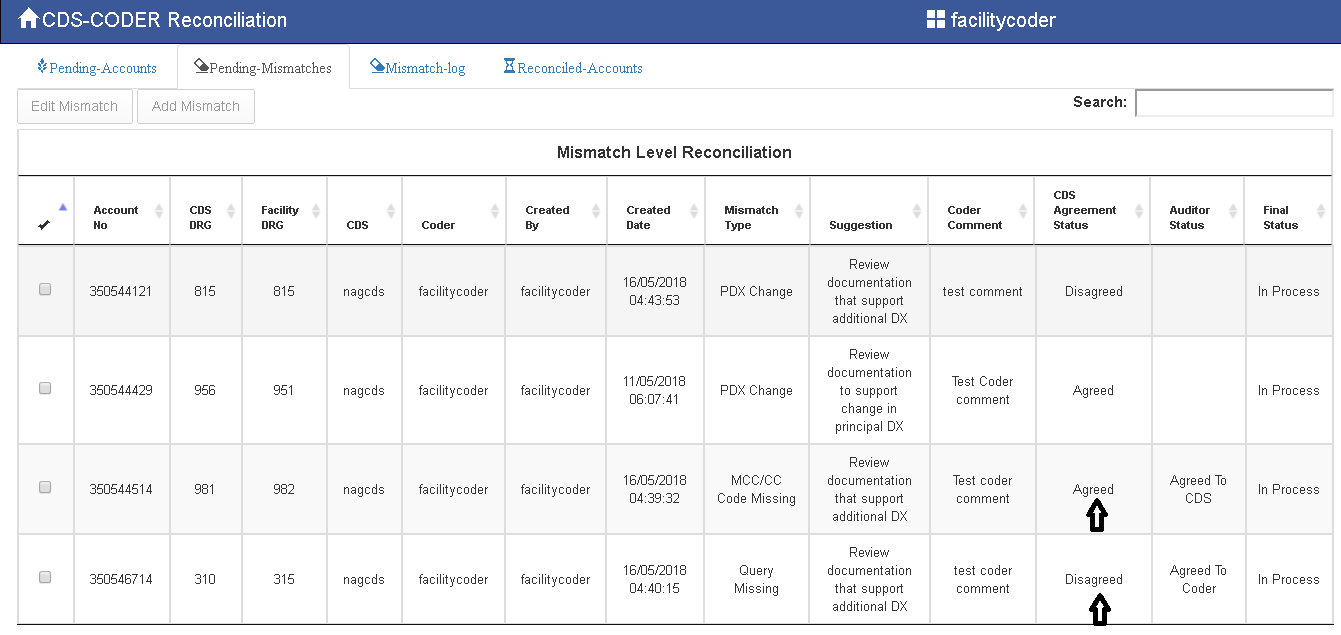
Based on the CDS comment in the CDS Agreement Status column, the Coder will process the account accordingly from the Pending-Mismatches tab.
6) The Coder to select the account and click “Edit Mismatch” to enter response, see below.
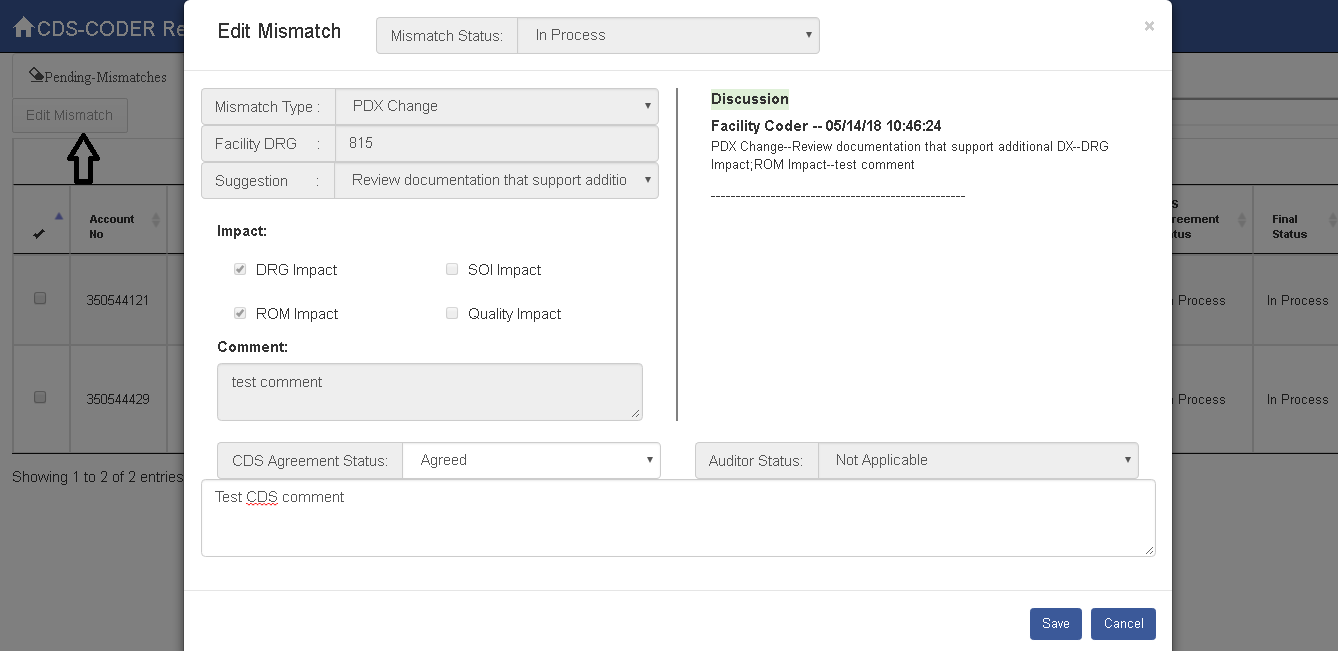
If the CDS Agreement Status column states “Agreed” then coder changes the Mismatch Status to "Closed". This way the particular mismatch is closed and completed.
If the CDS Agreement Status column states “Disagreed” then coder changes the Mismatch Status to "Escalate to CDS Auditor" for final suggestion from the auditor.
Auditor’s decision can be viewed under the column “Auditor Status”.
If Auditor Status is "Agreed with CDS”, then the Coder should change Mismatch status to "No-Mismatch" and close it.
If Auditor Status is "Agreed with Coder", coder should change Mismatch status to "Closed".
Mismatch log tab contains all mismatches that have been closed, see below.
For an account to be completed (Reconciled), all mismatches for that particular account have to be closed. Till an account is not reconciled, it will be present in the Pending-Accounts Tab. Select the account from the Pending-Accounts tab that needs to be closed and click Reconcile.
Once Reconciled, the accounts will move to Reconciled-Accounts Tab, see below.