Setting up SQL Server Alerts and Email Operator notifications
Problem:
Setting up an alert to e-mail an operator with a message is a multiple step process. You can setup database mail, define an operator and an alert, but still no e-mail is being sent. So how do you send an alert to an operator?.
Solution:
Note: This solution involves restarting SQL Agent.
Database Mail:
First setup database mail with a profile named SQLAlerts. The profile can be named anything but in these instructions, the profile name SQLAlerts is referenced. If you wish to use a different profile name just substitute accordingly. For procedures in setting up database mail.
Define Operator:
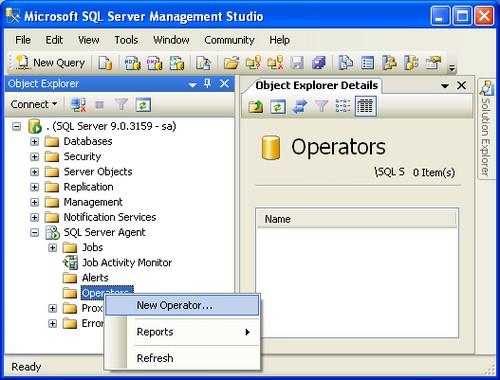
Connect to the instance using Microsoft SQL Management Studio Double Click SQL Server Agent
Right Click on Operators and select New Operator
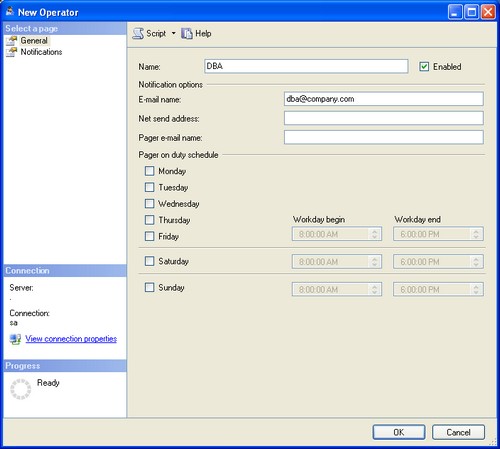
Specify an operator Name, E-mail name, and click OK
Setup SQL Agent Settings:
Note: This step is often overlooked when creating an alert for the first time. SQL Agent must be setup correctly for operators to receive an alert e-mail.
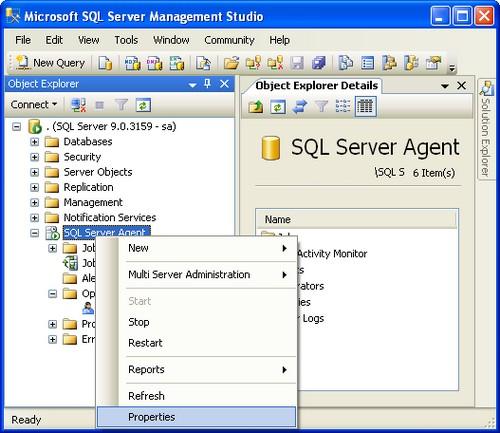
Right Click SQL Server Agent > select Properties
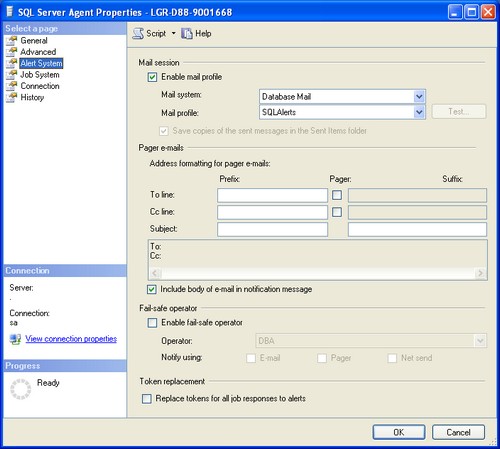
Select Alert System in the left pane
Checkmark > Enable mail profile
Verify Mail system: Database Mail
Verify Mail Profile: SQLAlerts
Checkmark > Include body of e-mail in the notification message
Click OK.
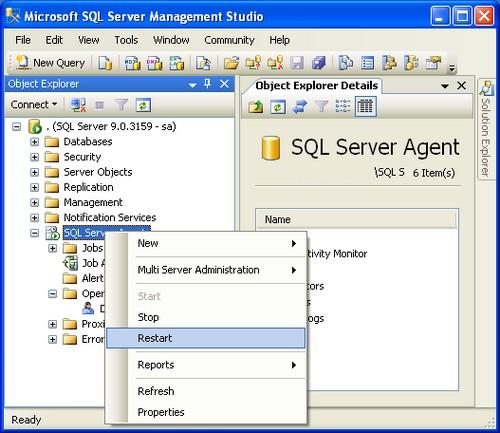
Restart SQL Agent to activate settings.
Warning: Restarting SQL Agent will cancel any executing jobs.
Define Alert:
This sample alert will send an email when TEMPDB database gets larger than 0 KB. This setting is set zero so the alert can be tested. Once verified, you will need to update its settings to a reasonable amount or disable it.
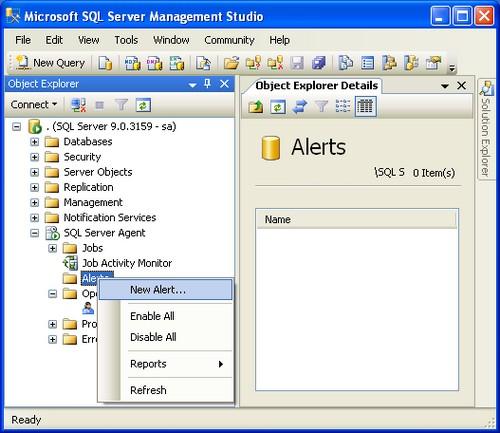
Right Click Alerts and select New Alert
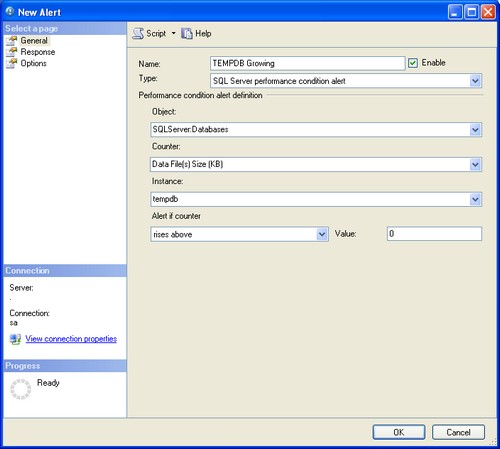
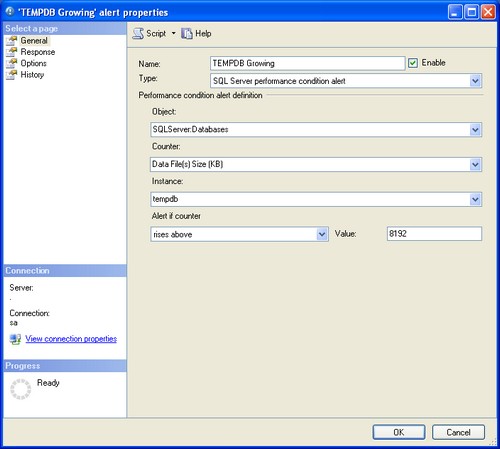
On the General pane specify
Name: TEMPDB Growing
Type: SQL Server performance condition alert
Object: SQLServer:Databases
Counter: Data File(s) (KB)
Instance: tempdb
Alert if counter: rises above
Value: 0
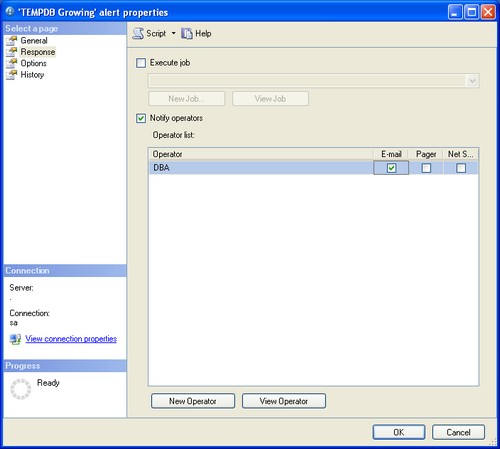
Click Response in left pane
Checkmark > Notify operators
Checkmark > E-mail for the operator
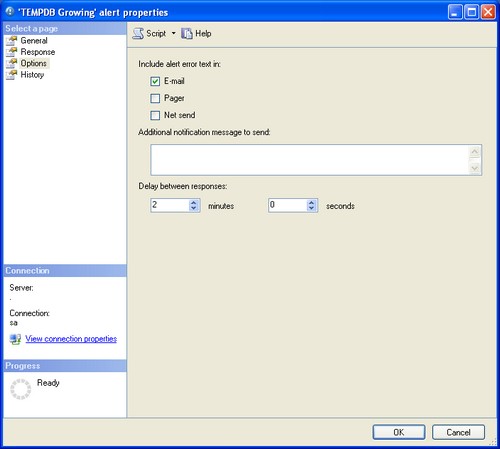
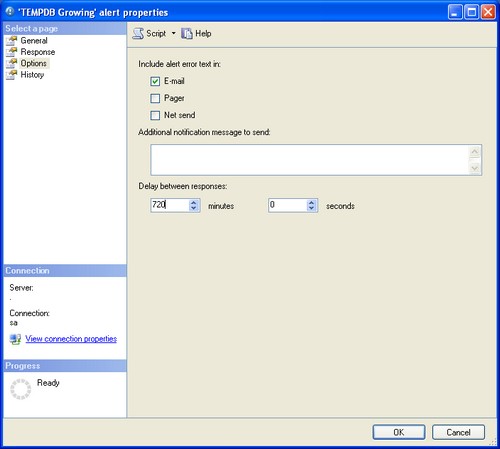
Click Options in left pane
Checkmark > Include alert error text in E-mail
Delay between response: 2 minutes
Click OK
Verify Alert is Working:
The operator should receive an e-mail if not see the troubleshooting section.
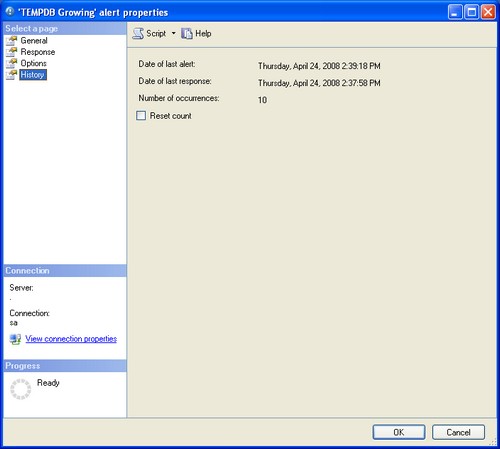
Open the Alert. Click History in the left pane.
The fields are updated when the alert is triggered.
Stop the test:
To stop the Alert from being sent every two minutes, you have two options disable the alert or provide a more appropriate size and response times.
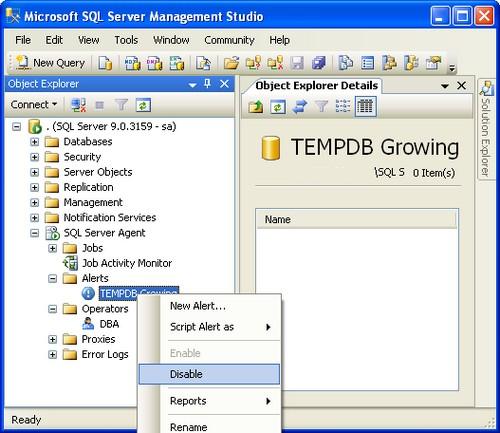
To disable alert
Click General in left pane and remove the checkmark from Enable and click OK OR Right click on Alert name and select Disable
To change the settings
Click General in left pane
Change value to value larger than existing TEMPDB database file save. The current file size is included in the e-mailed alert.
Click Options in left pane
Change response to 720 minutes which is 12 hours
Click OK
Troubleshooting:
If the operator does not receive an e-mail
Test database mail by sending a test e-mail to the operator's e-mail address. Make sure you restarted SQL Agent and it is running.