Custome SQLTemplates for SQL Server
SQL Server Templates are SQL scripts, containing SQL code, frequently used by developers and DBAs in their daily work (e.g. Create Table, Add Column, Drop Column, Create Database, Create Logins etc.):
For SQL Server 2008, find this directory for Editing SQLTempltes :
C:\Program Files\Microsoft SQL Server\100\Tools\Binn\VSShell\Common7\IDE\SqlWorkbenchProjectItems\Sql\Stored Procedure\
or for those on x64 Windows :
C:\Program Files (x86)\Microsoft SQL Server\100\Tools\Binn\VSShell\Common7\IDE\SqlWorkbenchProjectItems\Sql\Stored Procedure\
SQLServer TemplateExplorer :
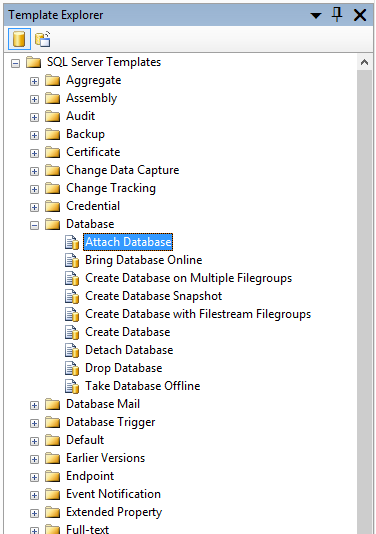
SQL Server Templates exists since SQL Server 2000, but the Template Explorer feature SQL Server Templates was introduced in SQL Server 2005. The Template Explorer is a collection of folders that contains the templates based on category (e.g. Database, Backup, Function):
In SQL Server 2000 the file extension for SQL templates was .tsql. Since SQL Server 2005 this extension is changed to .sql.
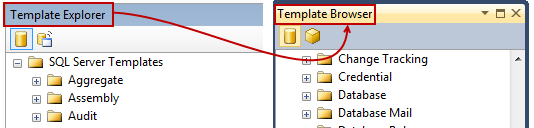
From SQL Server 2012 the title for the pane that contains SQL Server Templates is changed from the Template Explorer to the Template Browser:
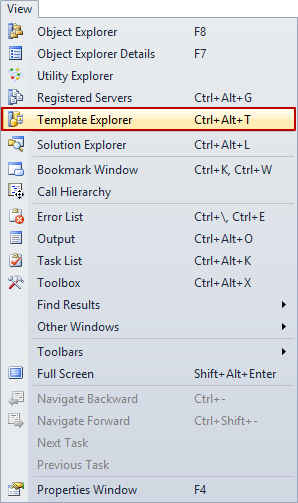
By default, the Template Browser pane does not open when SQL Server Management Studio (SSMS) starts. To initiate the Template Browser pane, go to the SSMS main menu, select the View menu and from the list, choose the Template Explorer option or use a combination of keyboard shortcut Ctrl+Alt+T.
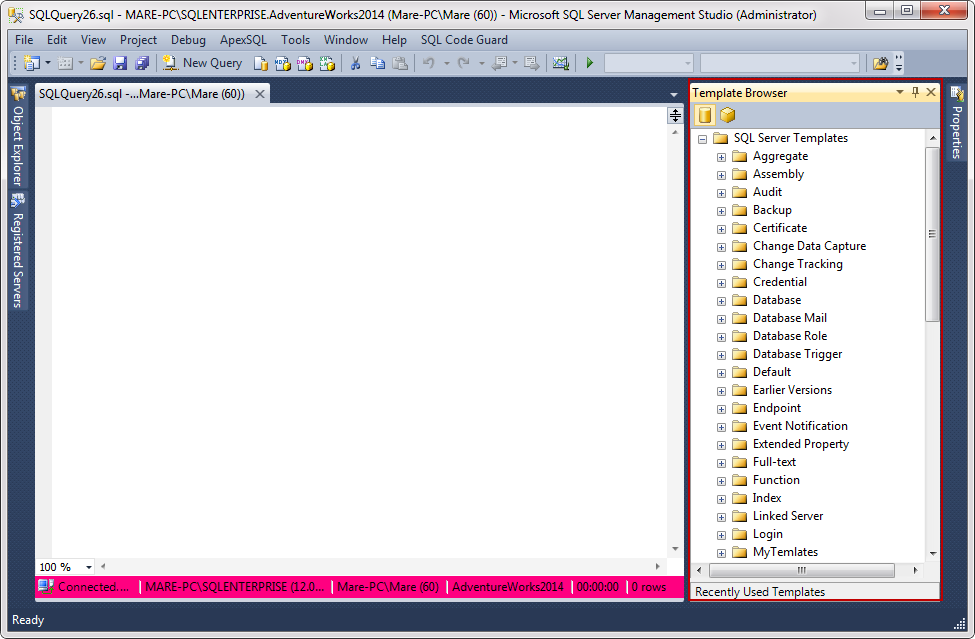
This will open the Template Browser pane, by default the Template Browser pane will be shown on the right side of SSMS.
There are three ways to insert SQL template in the query window. Double clicking on it or right click on the SQL template and from the popup menu choose the Open option.
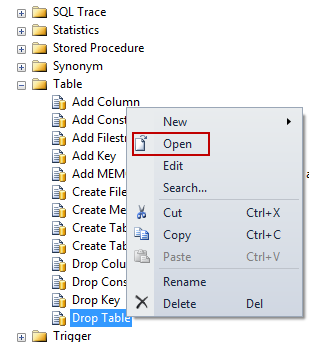
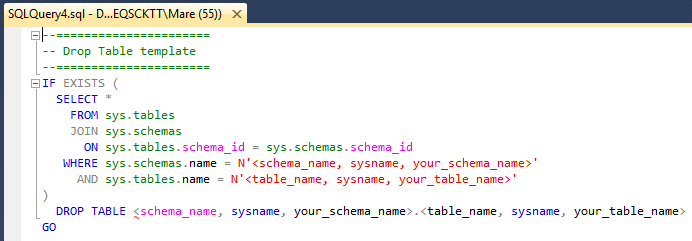
Will open SQL template in the new query window.
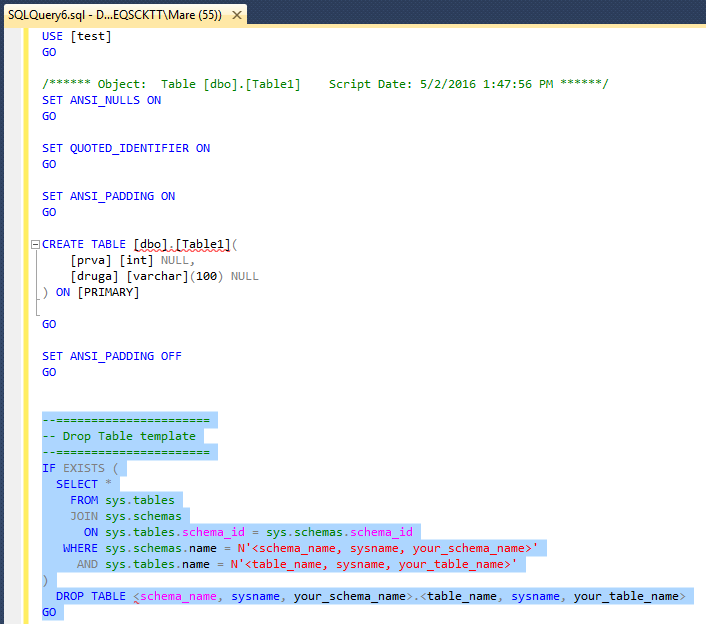
And the third is a drag and drop way, will open SQL template in a targeted query window.
Replace Template parameters with values
The SQL template may or may not include parameterization. SQL template parameters are placeholders for the values that need to be changed by the user. A SQL template parameter starts with less-than sign “<” and ends with a greater than sign “>”. There are three parts of the SQL template parameter between less-than and greater-than sign:
Parameter name – the name of the parameter that need to be changed (e.g. schema_name, database_name, table_name)
Data type – the data type of the parameter (e.g. int, varchar, date, sysname)
Value – parameter shows what value will be used as a default for each parameter
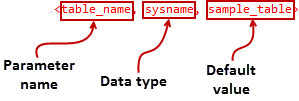
The Data type and Value are optional and can be omitted from the parameter list. Note, when omitted the comma, which separates them must remain.

Specify values for template parameters
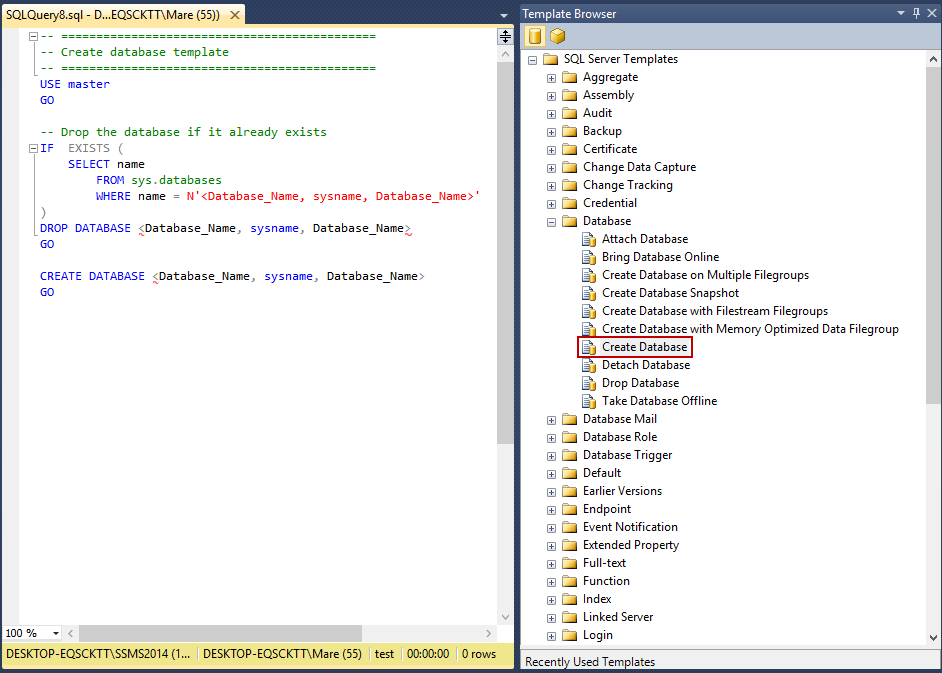
In order to replace parameters in SQL template with corresponding values, open the SQL template that want to be use from the Template Browser pane (e.g. Create Database):
From the SSMS main menu, choose the Query menu and from the list, select the Specify Values for Template Parameters option
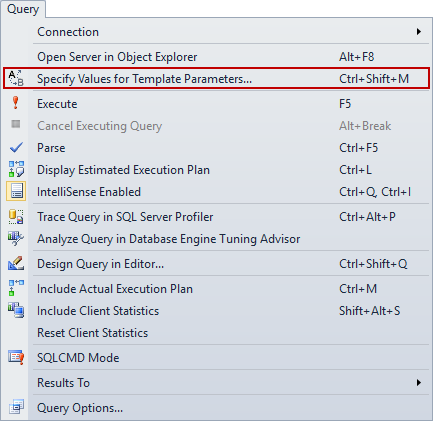
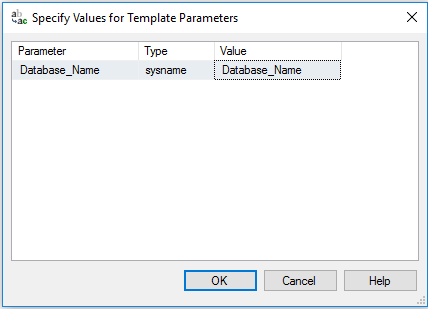
Or use the keyboard shortcut Ctrl+Shift+M. In both ways will open the Specify Values for Template Parameters window for entering a values
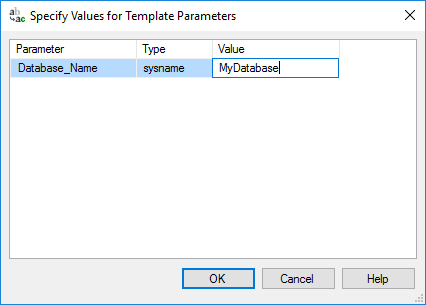
In the Value column, replace the default value with the name of the database that will be created (e.g. MyDatabase) and click the OK button
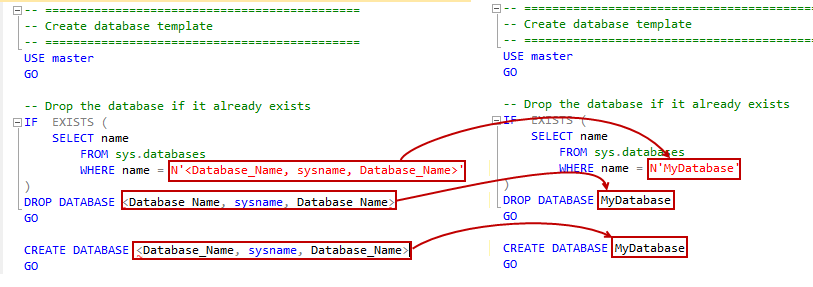
The SQL template will remove everything between the <>, and replace with the name of the database that inserted in the Specify Values for Template Parameters window.
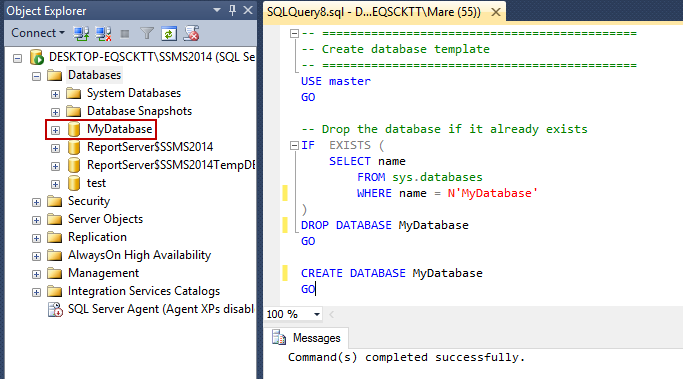
When this template is executed, a database will be created with the name “MyDatabase”
Creating a custom SQL template
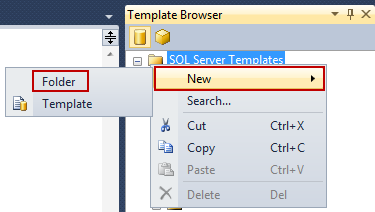
To create a SQL template, navigate to the desired folder in the Template Browser or create a new folder in the Template Browser. Right click on the folder and from the popup menu choose the New and select the Folder command.
The New Folder will appear in the bottom of the Template Browser and stays down after renaming e.g. Custom SQL Templates.
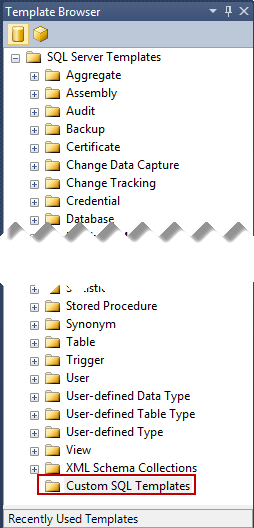
In order for the newly created folder to sorted in alphabetical order in the Template Browser SSMS must be restarted.
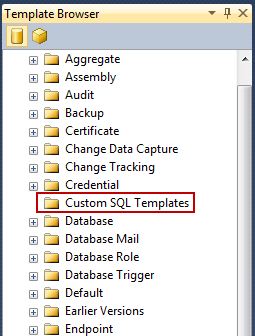
Right click on the newly created folder and from the popup menu, choose the New option, and then click the Template command, type the name for a new SQL template e.g. PersonInfo.
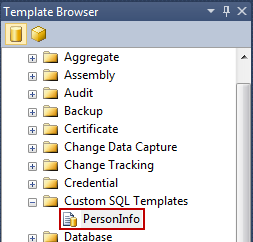
Right click on the newly created SQL templates and press the Edit command, this will open SQL template in a new blank query window.
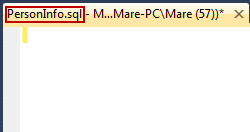
Place the SQL code:
1 2 3 4 5 6 7 8 9 10 11 | |
Change the SQL variable items to parameters e.g. ken0@ to <Address_Name,varchar(100),ken0@> and 6 replace with
1 2 3 4 5 6 7 8 9 10 11 | |
…and save changes.
When the PersonInfo template is double-clicked on, will open a new query window with the code in it:
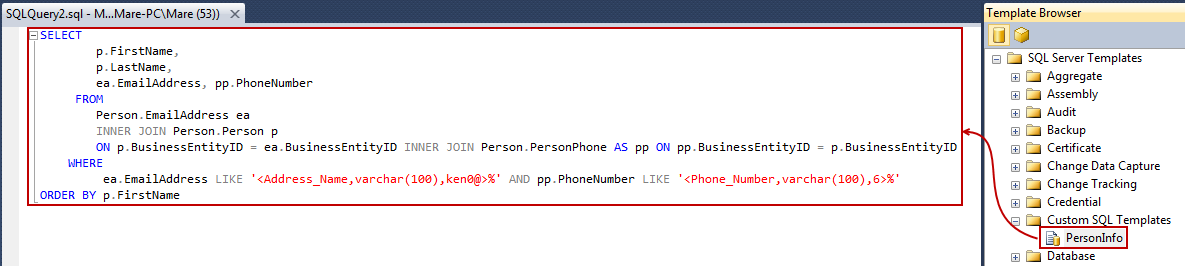
Use the shortcut Ctrl+Shift+M to open the Specify Values for Template Parameters dialog box and change values in the Value field with appropriate one and press the OK button:
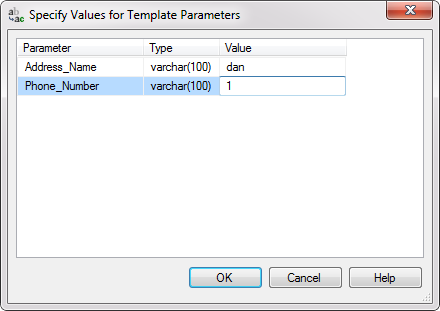
This will change parameters with the corresponding values:

Open vs Edit SQL template:
When opening the template via double-clicking or via the Open command from the popup menu, a new query will open and populate the query with the contents of the template file. Making changes to that query will not affect the existing template. But, if the Edit command is used to make changes, any changes that were made will be saved for future use.