Database Backups
Different types of SQL Server backups you can create:
- Full backups
- Differential backups
- File backups
- Filegroup backups
- Partial backups
- Copy-Only backups
- Mirror backups
- Transaction log backups
Full Backup Overview
The most common types of SQL Server backups are complete or full backups, also known as database backups. These backups create a complete backup of your database as well as part of the transaction log, so the database can be recovered. This allows for the simplest form of database restoration, since all of the contents are contained in one backup.
Explanation
A full backup can be completed either using T-SQL or by using SSMS. The following examples show you how to create a full backup.
Create full database backup to one disk file using T-SQL
1 2 3 4 5 6 7 8 9 10 11 12 13 | |
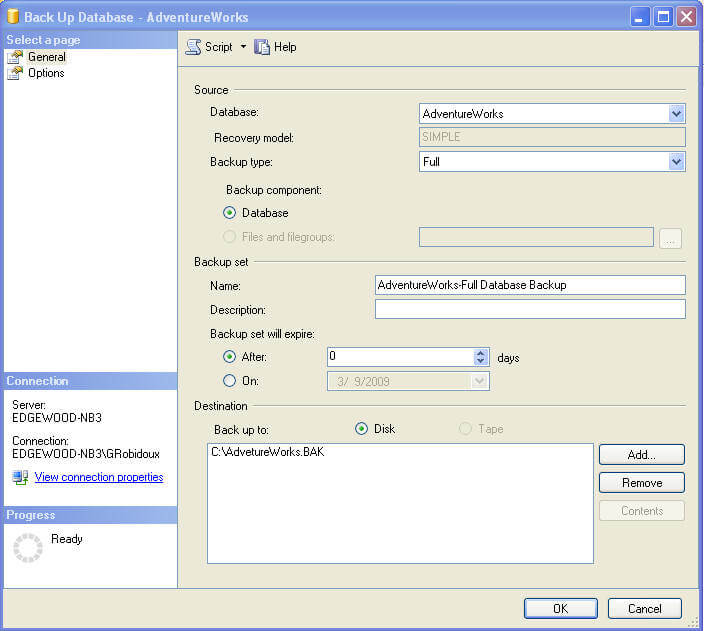
Create full database backup to one disk file using SSMS
- Right click on the database name
- Select Tasks > Backup
- Select "Full" as the backup type
- Select "Disk" as the destination
- Click on "Add..." to add a backup file and type "C:\AdventureWorks.BAK" and click "OK"
- Click "OK" again to create the backup
Differential Backups Overview
Another option to assist with your recovery is to create "Differential" backups. A "Differential" backup is a backup of any extent that has changed since the last "Full" backup was created.
Explanation The way differential backups work is that they will backup all extents that have changed since the last full backup. An extent is made up of eight 8KB pages, so an extent is 64KB of data. Each time any data has been changed a flag is turned on to let SQL Server know that if a "Differential" backup is created it should include the data from this extent. When a "Full" backup is taken these flags are turned off.
So if you do a full backup and then do a differential backup, the differential backup will contain only the extents that have changed. If you wait some time and do another differential backup, this new differential backup will contain all extents that have changed since the last full backup. Each time you create a new differential backup it will contain every extent changed since the last full backup. When you go to restore your database, to get to the most current time you only need to restore the full backup and the most recent differential backup. All of the other differential backups can be ignored.
If your database is in the Simple recovery model, you can still use full and differential backups. This does not allow you to do point in time recovery, but it will allow you to restore your data to a more current point in time then if you only had a full backup.
If your database is in the Full or Bulk-Logged recovery model you can also use differential backups to eliminate the number of transaction logs that will need to be restored. Since the differential will backup all extents since the last full backup, at restore time you can restore your full backup, your most recent differential backup and then any transaction log backups that were created after the most recent differential backup. This cuts down on the number of files that need to be restored.
Create Differential database backup to one disk file using T-SQL
1 2 3 4 5 6 7 8 | |
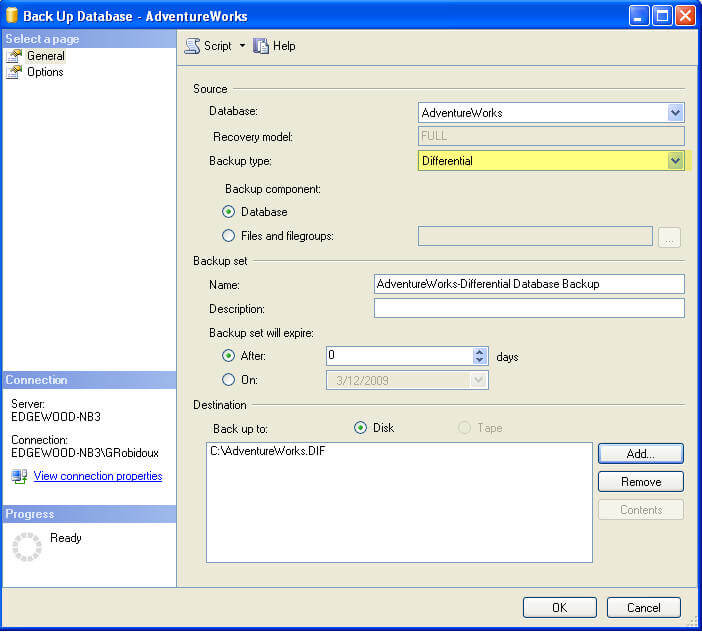
Create Differential database backup to one disk file using SSMS
- Right click on the database name
- Select Tasks > Backup
- Select "Differential" as the backup type
- Select "Disk" as the destination
- Click on "Add..." to add a backup file and type "C:\AdventureWorks.diff" and click "OK"
- Click "OK" again to create the backup
Transaction Log Backup Overview
If your database is set to the "Full" or "Bulk-logged" recovery model then you will be able to issue "Transaction Log" backups. By having transaction log backups along with full backups you have the ability to do a point in time restore, so if someone accidently deletes all data in a database you can recover the database to the point in time right before the delete occurred. The only caveat to this is if your database is set to the "Bulk-logged" recovery model and a bulk operation was issued, you will need to restore the entire transaction log.
Explanation
A transaction log backup allows you to backup the active part of the transaction log. So after you issue a "Full" or "Differential" backup the transaction log backup will have any transactions that were created after those other backups completed. After the transaction log backup is issued, the space within the transaction log can be reused for other processes. If a transaction log backup is not taken, the transaction log will continue to grow.
A transaction log backup can be completed either using T-SQL or by using SSMS. The following examples show you how to create a transaction log backup.
Create Transaction Log backup to one disk file using T-SQL
1 2 3 4 5 6 7 8 9 | |
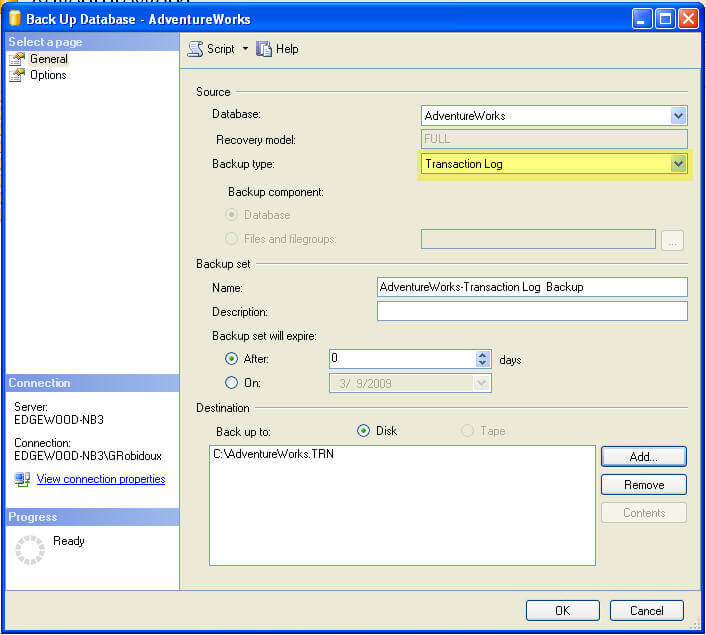
Create Transaction Log backup to one disk file using SSMS
- Right click on the database name
- Select Tasks > Backup
- Select "Transaction Log" as the backup type
- Select "Disk" as the destination
- Click on "Add..." to add a backup file and type "C:\AdventureWorks.TRN" and click "OK"
- Click "OK" again to create the backup
Create Backups using Only Commands
There are only two commands for backup, the primary is BACKUP DATABASE. This allows you to do a complete backup of your database as well as differential, file, etc. backups depending on the options that you use.
Explanation
The BACKUP DATABASE command gives you many options for creating backups. Following are different examples.
Create a full backup to disk
The command is BACKUP DATABASE databaseName. The "TO DISK" option specifies that the backup should be written to disk and the location and filename to create the backup is specified.
1 2 3 | |
Create a differential backup
This command adds the "WITH DIFFERENTIAL" option.
1 2 3 4 | |
Create a file level backup
This command uses the "WITH FILE" option to specify a file backup. You need to specify the logical filename within the database which can be obtained by using the command sp_helpdb 'databaseName', specifying the name of your database.
1 2 3 | |
Create a filegroup backup
This command uses the "WITH FILEGROUP" option to specify a filegroup backup. You need to specify the filegroup name from the database which can be obtained by using the command sp_helpdb 'databaseName', specifying the name of your database.
1 2 3 | |
Create a full backup to multiple disk files
This command uses the "DISK" option multiple times to write the backup to three equally sized smaller files instead of one large file.
1 2 3 4 5 | |
Create a full backup with a password
This command creates a backup with a password that will need to be supplied when restoring the database.
1 2 3 4 | |
Create a full backup with progress stats
This command creates a full backup and also displays the progress of the backup. The default is to show progress after every 10%.
1 2 3 4 | |
Here is another option showing stats after every 1%.
1 2 3 4 | |
Create a backup and give it a description
This command uses the description option to give the backup a name. This can later be used with some of the restore commands to see what is contained with the backup. The maximum size is 255 characters.
1 2 3 4 | |
Create a mirrored backup
This option allows you to create multiple copies of the backups, preferably to different locations.
1 2 3 4 5 | |
Specifying multiple options This next example shows how you can use multiple options at the same time.
1 2 3 4 5 | |
Create Transaction Log backup using Only T-SQL Commands
There are only two commands for backup, the primary is BACKUP DATABASE which backs up the entire database and BACKUP LOG which backs up the transaction log. The following will show different options for doing transaction log backups.
Explanation
The BACKUP LOG command gives you many options for creating transaction log backups. Following are different examples.
Create a simple transaction log backup to disk
The command is BACKUP LOG databaseName. The "TO DISK" option specifies that the backup should be written to disk and the location and filename to create the backup is specified. The file extension is "TRN". This helps me know it is a transaction log backup, but it could be any extension you like. Also, the database has to be in the FULL or Bulk-Logged recovery model and at least one Full backup has to have occurred.
1 2 3 | |
Create a log backup with a password
This command creates a log backup with a password that will need to be supplied when restoring the database.
1 2 3 4 | |
Create a log backup with progress stats
This command creates a log backup and also displays the progress of the backup. The default is to show progress after every 10%.
1 2 3 4 | |
Here is another option showing stats after every 1%.
1 2 3 4 | |
Create a backup and give it a description
This command uses the description option to give the backup a name. This can later be used with some of the restore commands to see what is contained with the backup. The maximum size is 255 characters.
1 2 3 4 | |
Create a mirrored backup
This option allows you to create multiple copies of the backups, preferably to different locations.
1 2 3 4 5 | |
Specifying multiple options
This example shows how you can use multiple options at the same time.
1 2 3 4 5 | |